✅ 오늘의 학습 목표 1. 농장 게임 만들기 (4) - 동물 움직임 구현 - '깃발 회수' 미니 게임 제작 - '틱택톡' 미니 게임 제작 - 씬 전환 구현 및 캐릭터 인덱스 반환 작업
1. 동물
NavMesh를 활용하여 동물이 Bake 된 맵 안을 자유롭게 돌아다니는 것을 구현하려고 한다.
using System.Collections;
using UnityEngine;
using UnityEngine.AI;

public class AnimalController : MonoBehaviour
{
    private NavMeshAgent agent;
    private Animator anim;

    [SerializeField] private float wanderRadius = 15f;

    private float minWaitTime = 1f;
    private float maxWaitTime = 5f;

    private void Awake()
    {
        agent = GetComponent<NavMeshAgent>();
        anim = GetComponent<Animator>();
    }

    IEnumerator Start()
    {
        while (true)
        {
            // 랜덤 목적지 설정
            SetRandomDestination();
            anim.SetBool("IsWalk", true);

            // 목적지 도달까지 대기
            yield return new WaitUntil(() => !agent.pathPending && agent.remainingDistance <= agent.stoppingDistance);

            anim.SetBool("IsWalk", false);
            float idleTime = Random.Range(minWaitTime, maxWaitTime);
            yield return new WaitForSeconds(idleTime);
        }
    }

    private void SetRandomDestination()
    {
        var randomDir = Random.insideUnitSphere * wanderRadius;
        randomDir += transform.position;

        NavMeshHit hit;
        if (NavMesh.SamplePosition(randomDir, out hit, wanderRadius, NavMesh.AllAreas))
        {
            agent.SetDestination(hit.position);
        }
    }
}
1. WaitUntill
매 프레임마다 조건을 평가해서 true가 되는 순간까지 코루틴을 멈추는 기능이다.
매 프레임마다 bool 값을 참조하는 WaitUntil(Func<bool>) 형태여서 람다같이 메서드 참조로 bool 값을 전달해야 한다.
2. SetRandomDestination()
Random.insideUnitSphere는 반지름이 1인 구 안에서 무작위 점 하나를 추출한다.
해당 벡터에 wanderRadius를 곱하면 반지름이 wanderRadisu(15)인 구로 범위가 확장된다.
3. NavMesh.SamplePosition
public static bool SamplePosition(
    Vector3 sourcePosition,   // 찾고 싶은 기준 좌표
    out NavMeshHit hit,       // 결과 좌표가 들어갈 구조체
    float maxDistance,        // 탐색 반경
    int areaMask              // 어떤 NavMesh 영역에서 찾을지
)
위에서 생성한 벡터 좌표 주변을 maxDistance 반경으로 훑어 NaveMesh위의 최근접 점을 찾아준다.
찾으면 true, 못 찾으면 false를 반환하여 영역 마스크로 이동 가능한 구역을 제한한다.
△ NavMesh.AllAreas 대신 영역 마스크를 쓰면 특정 지역(도로/풀밭)만 걷게 만들 수도 있다.
using System;
using UnityEngine;
using Random = UnityEngine.Random;

public class AnimalEvent : MonoBehaviour
{
    [SerializeField] private GameObject flag;
    private BoxCollider boxCollider;

    public static Action failAction;

    private float timer;
    private bool isTimer;

    void Start()
    {
        boxCollider = GetComponent<BoxCollider>();
        failAction += SetRandomPosition;
    }

    void Update()
    {
        if (!isTimer)
            return;

        timer += Time.deltaTime;
    }

    private void OnTriggerEnter(Collider other)
    {
        if (other.CompareTag("Player"))
        {
            isTimer = true;
            SetRandomPosition();

            GameManager.Instance.SetCameraState(CameraState.Animal);
        }
    }

    private void OnTriggerExit(Collider other)
    {
        if (other.CompareTag("Player"))
        {
            Debug.Log($"깃발 찾는데 걸린 시간 : {timer:F1}초");
            isTimer = false;
            timer = 0f;

            SetFlag(Vector3.zero, false);
            GameManager.Instance.SetCameraState(CameraState.Outside);
        }
    }

    // 깃발 위치 세팅
    private void SetRandomPosition()
    {
        float randomX = Random.Range(boxCollider.bounds.min.x, boxCollider.bounds.max.x);
        float randomZ = Random.Range(boxCollider.bounds.min.z, boxCollider.bounds.max.z);

        var randomPos = new Vector3(randomX, 0f, randomZ);

        SetFlag(randomPos, true);
    }

    private void SetFlag(Vector3 pos, bool isActive)
    {
        flag.transform.SetParent(transform);
        flag.transform.position = pos;
        flag.SetActive(isActive);
    }
}
1. SetRandomPosition() → 깃발 위치 랜덤 설정
BoxCollider의 bounds 값을 활용해서 지정된 구역의 최소 ~ 최대 X, Z 좌표를 뽑아온다.
해당 좌표 범위 안에서 Random.Range()을 활용해 무작위 X, Z 값을 randomPos로 반환한다.
2. SetFlag → 깃발 활성화 / 비활성화
SetRandomPosition() 메서드를 통해서 받아온 randomPos를 활용하여 깃발의 위치를 지정한다.
이때 깃발 오브젝트를 Animal Event 오브젝트의 자식으로 두어 유니티 에디터에서도 관리하기 쉽게 해주었다.
3. 타이머
Animal 필드 안에 있는 경우에만 타이머가 작동되도록 Trigger Enter / Exit 처리를 해주었다.
필드 안으로 들어간 시점부터 타이머를 측정하여 필드 밖으로 나갈 때 타이머 측정값을 반환한다.
2. 깃발 들기
using UnityEngine;

public class Flag : MonoBehaviour
{
    [SerializeField] private Vector3 offsetPos;

    private void OnTriggerEnter(Collider other)
    {
        if (other.CompareTag("Player"))
        {
            transform.SetParent(other.transform);
            transform.localPosition = offsetPos;
            transform.localRotation = Quaternion.identity;
        }
    }
}
플레이어가 깃발 트리거에 닿으면 깃발은 플레이어의 자식으로 붙고, 오프셋만큼 위치와 회전을 맞춰주었다.
3. 깃발 재배치
public class AnimalController : MonoBehaviour
{
    // 깃발 게임 - 업그레이드 1 : 양과 부딪혔을 때 깃발 초기화
    private void OnTriggerEnter(Collider other)
    {
        if (other.CompareTag("Player"))
        {
            // 깃발을 다시 랜덤한 위치로 이동
            AnimalEvent.failAction?.Invoke();
            Debug.Log("동물 피하기 실패");
        }
    }
}
플레이어가 동물과 부딪히면 깃발의 위치를 다시 랜덤 한 위치에 나타나도록 해주는 실패 트리거를 만들어 주었다.
4. 카메라 시점 업데이트
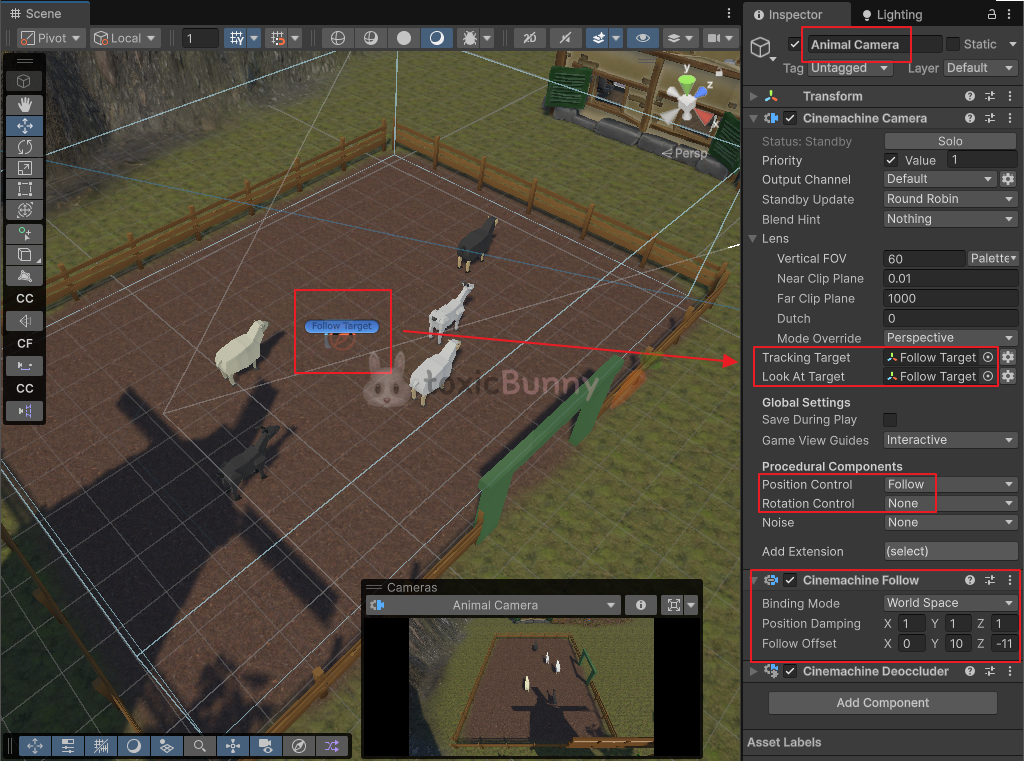
기존 Animal 필드의 카메라는 플레이어를 바라보는 기능만 있었기에 사각지대로 가면 플레이어가 잘 안 보이는 현상이 있었다.
이를 보완해 주기 위하여 카메라가 플레이어의 X축 이동만 따라가도록 구현해 주었다.
우선 빈 오브젝트를 Animal 필드 안에 적절히 위치시키고
해당 오브젝트가 플레이어를 따라가도록 FollowTarget 스크립트를 배치해 주었다.
// 타겟 설정
using UnityEngine;

public class FollowTarget : MonoBehaviour
{
    private Transform target;

    void Start()
    {
        target = GameObject.FindGameObjectWithTag("Player").transform;
    }

    void LateUpdate()
    {
        // 플레이어의 x축만 따라가도록
        transform.position = new Vector3(target.position.x, transform.position.y, transform.position.z);
    }
}

// 카메라 설정
public class AnimalEvent : MonoBehaviour
{
    [SerializeField] private GameObject followTarget;

    private void OnTriggerEnter(Collider other)
    {
        if (other.CompareTag("Player"))
        {
            isTimer = true;
            SetRandomPosition();

            followTarget.SetActive(true);
            GameManager.Instance.SetCameraState(CameraState.Animal);
        }
    }

    private void OnTriggerExit(Collider other)
    {
        if (other.CompareTag("Player"))
        {
            Debug.Log($"깃발 찾는데 걸린 시간 : {timer:F1}초");
            isTimer = false;
            timer = 0f;

            SetFlag(Vector3.zero, false);
            GameManager.Instance.SetCameraState(CameraState.Outside);
            followTarget.SetActive(false);
        }
    }
}
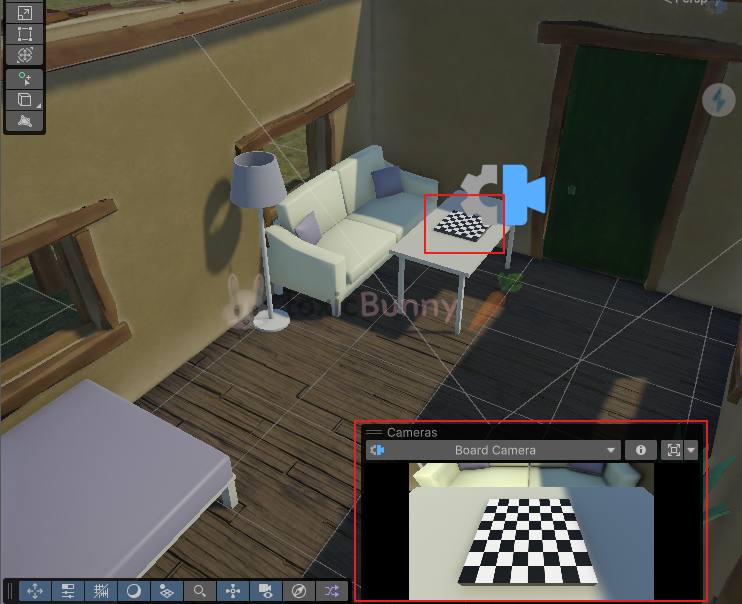
그런 다음 플레이어가 보드 게임판에 다가가면 카메라 시점이 전환되도록 BoardEvent 스크립트를 배치해 주었다.
using UnityEngine;

public class BoardEvent : MonoBehaviour
{
    private void OnTriggerEnter(Collider other)
    {
        if (other.CompareTag("Player"))
        {
            GameManager.Instance.SetCameraState(CameraState.Board);
        }
    }

    private void OnTriggerExit(Collider other)
    {
        if (other.CompareTag("Player"))
        {
            GameManager.Instance.SetCameraState(CameraState.House);
        }
    }
}

// GameManager 스크립트에 enum 값 추가 필요
public enum CameraState { Outside, Field, House, Animal, Board }
2. TIC TAC TOE 게임
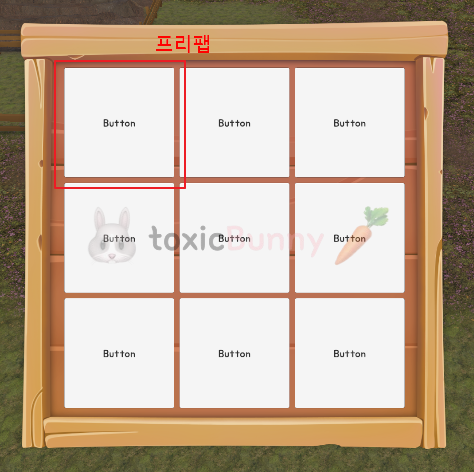
틱택토 게임을 할 수 있는 UI를 만들어 준다.
[플레이어의 한 수(행동) 보관]
using UnityEngine;

// 큰 틀
public class Single_Move : MonoBehaviour
{
    public int x, y;
    public int player;

    public Single_Move(int x, int y, int player)
    {
        this.x = x;
        this.y = y;
        this.player = player;
    }
}
플레이어가 어느 칸에 수를 두었는지 기록하는 용도이다.
생성자로 x좌표, y좌표, 플레이어 번호를 받아서 해당 수를 표현한다.
[UI 제어]
using System;
using TMPro;
using UnityEngine;
using UnityEngine.UI;

// 버튼
public class Single_Cell : MonoBehaviour
{
    public int x, y;
    [SerializeField] private Button button;
    [SerializeField] private TextMeshProUGUI cellText;

    public void SetText(string text)
    {
        cellText.text = text;
    }

    public void SetButton(int x, int y, Action<int, int> onClickEvent)
    {
        this.x = x;
        this.y = y;

        button.onClick.AddListener(() => onClickEvent(x, y));
    }
}
화면에 있는 하나의 칸(셀)을 표현하고 클릭 이벤트를 처리하는 코드이다.
SetText(string text) : 셀 안에 있는 문자 변경
SetButton(int x, int y, Action<int, int> onClickEvent)
x와 y 좌표를 통해 해당 셀이 보드에서 몇 번째 칸인지 확인
해당 셀이 클릭되면 두 개의 좌표를 반환
[알고리즘]
using System.Collections.Generic;
using UnityEngine;

// 규칙
public class Single_BoardTicTacToe : MonoBehaviour
{
    public int[,] board;
    private const int ROWS = 3, COLS = 3;

    public int player;

    public Single_BoardTicTacToe()
    {
        player = 1;
        board = new int[ROWS, COLS];
    }

    // 갈 수 있는 칸 확인
    public List<Single_Move> GetMoves()
    {
        var moves = new List<Single_Move>();

        for (int i = 0; i < ROWS; i++)
        {
            for (int j = 0; j < COLS; j++)
            {
                if (board[i, j] == 0) // 빈 칸
                {
                    moves.Add(new Single_Move(i, j, player));
                }
            }
        }

        return moves;
    }

    // 해당 구간으로 이동
    public void MakeMove(Single_Move move)
    {
        if (board[move.y, move.x] != 0) // 칸이 찬 상태
            return;

        board[move.y, move.x] = move.player;

        this.player = (move.player) == 1 ? 2 : 1; // 현재 이동한 player가 1이라면 그 다음 플레이어는 2
    }

    // 0: 진행 중, 1: Player1 승리, 2: Player2 승리, 3: 무승부
    public int CheckWinner()
    {
        // 가로 확인
        for (int i = 0; i < ROWS; i++)
        {
            if (board[i, 0] != 0 && board[i, 0] == board[i, 1] && board[i, 1] == board[i, 2])
            {
                return board[i, 0];
            }
        }

        // 세로 확인
        for (int j = 0; j < COLS; j++)
        {
            if (board[0, j] != 0 && board[0, j] == board[1, j] && board[1, j] == board[2, j])
            {
                return board[0, j];
            }
        }

        // 대각선 확인 ( / )
        if (board[0, 0] != 0 && board[0, 0] == board[1, 1] && board[1, 1] == board[2, 2])
        {
            return board[0, 0];
        }

        // 대각선 확인 ( \ )
        if (board[0, 2] != 0 && board[0, 2] == board[1, 1] && board[1, 1] == board[2, 0])
        {
            return board[0, 2];
        }

        // 무승부
        if (GetMoves().Count == 0)
            return 3;

        // 진행 중
        return 0;
    }

    public bool IsGameOver()
    {
        return CheckWinner() != 0;
    }

}
화면 속 3x3 보드를 관리하고 게임 진행 규칙을 처리하는 코드
GetMoves() : 현재 비어있는 칸들을 찾아서 해당 좌표와 현재 플레이어 번호를 담은 Single_Move 목록을 반환
MakeMove(Single_Move move)
지정된 좌표로 현재 플레이어의 말을 놓고 다음 턴 플레이어로 교체
이미 차 있는 칸이면 무시
CheckWinner()
가로, 세로, 대각선을 검사해 승자를 판별
모든 칸이 찼지만 승자가 없으면 무승부 (3 반환)
0: 진행 중 / 1: Player1 승리 / 2: Player2 승리 / 3: 무승부
IsGameOver() : CheckWinner() 결과가 0이 아니면 게임 종료
[전체 흐름 관리]
using TMPro;
using UnityEngine;
using UnityEngine.UI;

public class Single_BoardController : MonoBehaviour
{
    [SerializeField] private GameObject cellPrefab;
    [SerializeField] private Transform cellGroup;
    [SerializeField] private TextMeshProUGUI statusText;
    [SerializeField] private Button restartButton;

    private Single_BoardTicTacToe gameBoard;
    private Single_Cell[,] cells = new Single_Cell[3, 3];

    void Awake()
    {
        restartButton.onClick.AddListener(StartGame);
    }

    void Start()
    {
        StartGame();
    }

    public void StartGame()
    {
        gameBoard = new Single_BoardTicTacToe();

        statusText.text = "Player X Turn";
        restartButton.gameObject.SetActive(false);

        for (int i = 0; i < cellGroup.childCount; i++)
        {
            Destroy(cellGroup.GetChild(i).gameObject);
        }

        for (int i = 0; i < 3; i++)
        {
            for (int j = 0; j < 3; j++)
            {
                GameObject cellObj = Instantiate(cellPrefab, cellGroup);
                Single_Cell cell = cellObj.GetComponent<Single_Cell>();

                cell.SetButton(j, i, OnCellClicked);
                cells[i, j] = cell;
            }
        }

        UpdateBoardVisual();
    }

    // Cell을 눌러서 O 또는 X를 적용
    private void OnCellClicked(int x, int y)
    {
        if (gameBoard.IsGameOver() || gameBoard.board[y, x] != 0)
            return;

        Single_Move move = new Single_Move(x, y, gameBoard.player);
        gameBoard.MakeMove(move);

        UpdateBoardVisual();
        CheckForGameOver();
    }

    private void UpdateBoardVisual()
    {
        for (int i = 0; i < 3; i++)
        {
            for (int j = 0; j < 3; j++)
            {
                string str = "";
                if (gameBoard.board[i, j] == 1)
                    str = "X";
                else if (gameBoard.board[i, j] == 2)
                    str = "O";

                cells[i, j].SetText(str);
            }
        }
    }

    private void CheckForGameOver()
    {
        int winner = gameBoard.CheckWinner();
        if (winner == 0)
        {
            string nextPlayer = gameBoard.player == 1 ? "X" : "O";
            statusText.text = $"Player : {nextPlayer} Turn";
            return;
        }

        if (winner == 3)
            statusText.text = "Draw";
        else
        {
            string result = winner == 1 ? "X" : "O";
            statusText.text = $"Player {result} Win!";
        }

        restartButton.gameObject.SetActive(true);
    }
}
보드의 셀 생성부터 클릭 이벤트 처리, 승패 판정, UI 업데이트까지 게임 전체 흐름을 관리하는 코드
StartGame()
새로운 게임 보드(Single_BoardTicTacToe)를 생성하고, 상태 텍스트를 초기화
이전 셀을 모두 삭제 후 3x3 셀 프리팹을 새로 생성
각 셀에 좌표와 클릭 이벤트(OnCellClicked)를 연결
보드 화면을 초기 상태로 표시
OnCellClicked(int x, int y)
이미 게임이 끝났거나 해당 칸이 차 있으면 무시
현재 플레이어의 수(Single_Move)를 만들어 보드에 반영
보드 UI 갱신 후, 게임 종료 여부 확인
UpdateBoardVisual()
gameBoard의 현재 상태를 읽어 셀에 "X" 또는 "O" 표시
CheckForGameOver()
승리자 또는 무승부 여부를 CheckWinner()로 확인
진행 중이면 다음 플레이어 턴 안내
게임이 끝나면 승리/무승부 메시지 출력 후 재시작 버튼 표시
🚨 좌표 주의
화면/클릭은 (x,y), 2D 배열 접근은 [y,x]
[트리거 동작]
// UI 활성화&비활성화
public class BoardEvent : MonoBehaviour
{
    [SerializeField] private GameObject boardUI;

    private void OnTriggerEnter(Collider other)
    {
        if (other.CompareTag("Player"))
        {
            boardUI.gameObject.SetActive(true);
            Single_BoardController.startAction?.Invoke();

            GameManager.Instance.SetCameraState(CameraState.Board);
        }
    }

    private void OnTriggerExit(Collider other)
    {
        if (other.CompareTag("Player"))
        {
            boardUI.gameObject.SetActive(false);
            GameManager.Instance.SetCameraState(CameraState.House);
        }
    }
}

// Single_BoardController 스크립트
public class Single_BoardController : MonoBehaviour
{
    public static Action startAction;

    void Awake()
    {
        restartButton.onClick.AddListener(StartGame);

        startAction += StartGame;
    }
}
UI 활성화/비활성화를 위해 Action을 활용하여 StartGame을 구독하고
BoardEvent가 참조 없이 트리거 시점에 startAction?.Invoke()로 시작 신호를 방송하여 UI를 호출해 준다.
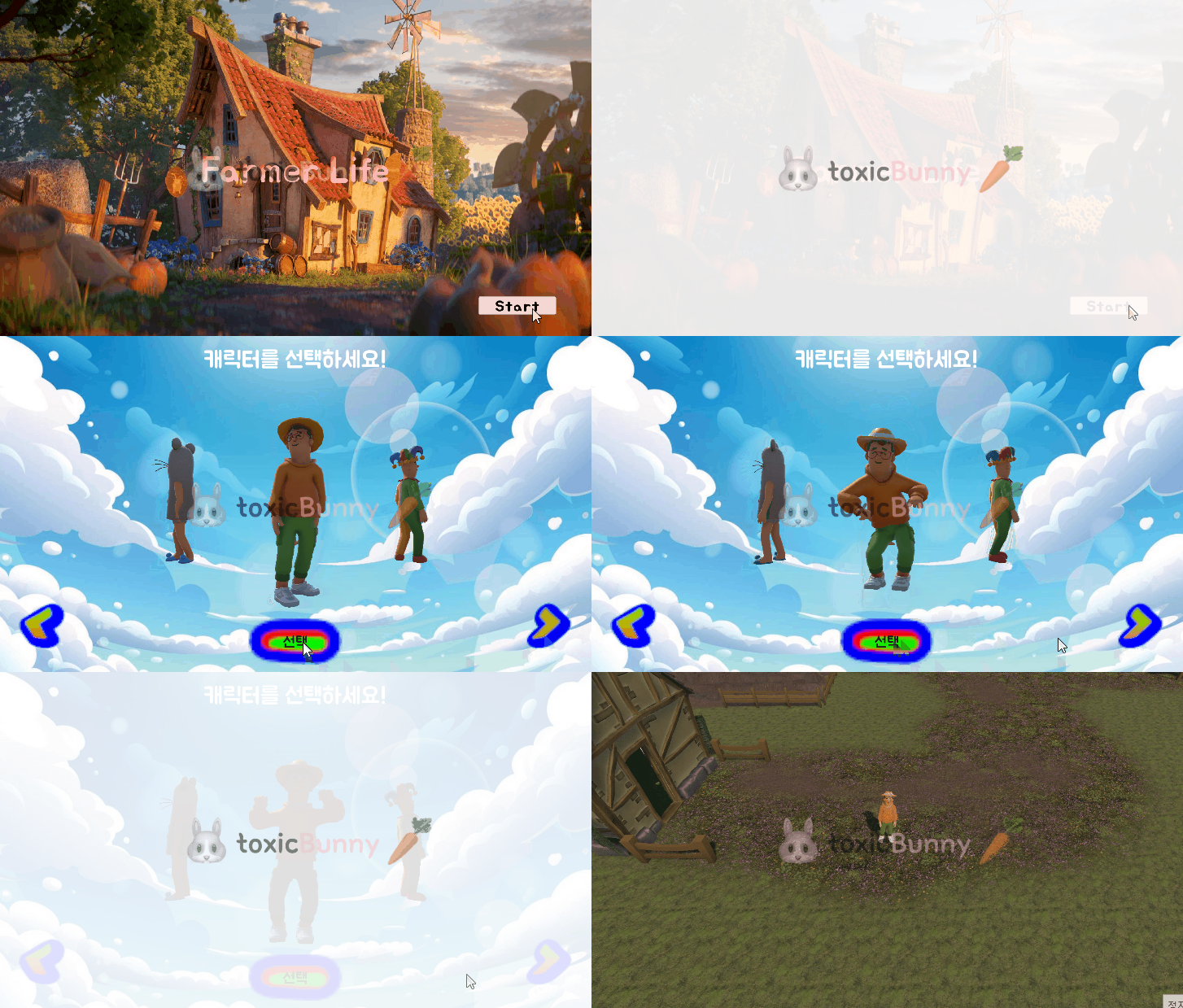
단일 소스 오브 트루스: 씬 인덱스, 선택 캐릭터 같은 공유 상태를 한 곳에서 관리 → 중복 로더로 인한 레이스/상태 꼬임 방지
연출 일관성: 페이드 → 로드 → 페이드아웃 같은 전환 파이프라인 표준화
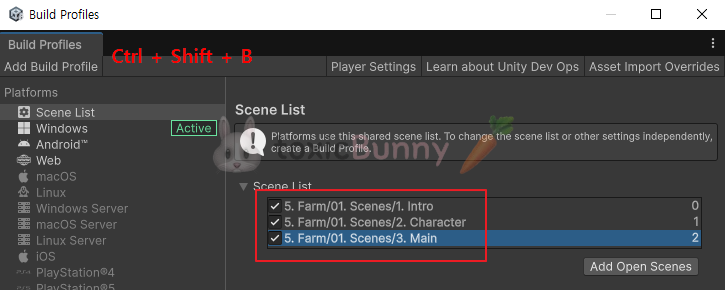
빌드창 열어서 씬 리스트 적용해 주기
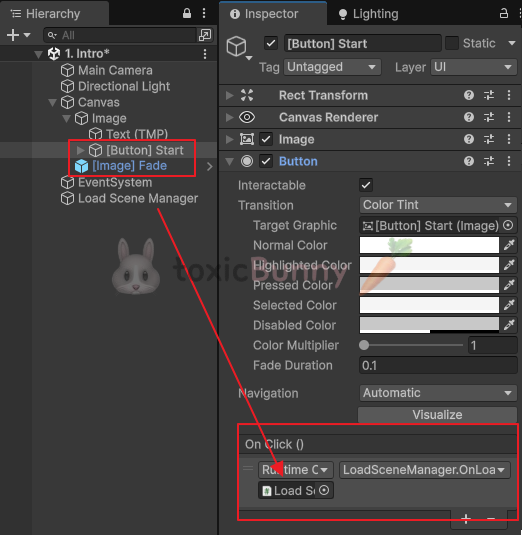
시작 버튼 누르면 씬 전환될 수 있도록 LoadManager 온클릭 메서드 연결
1. 캐릭터 연동
씬이 전환될 때 선택한 캐릭터가 연동된 채로 Main 씬으로 전환되게 하기 위한 세팅
public class SelectCharacter : MonoBehaviour
{
    private void Select()
    {
        Debug.Log($"현재 선택한 캐릭터는 {currentIndex}번째 캐릭터입니다.");

        // 선택한 캐릭터 인덱스 저장
        LoadSceneManager.Instance.SetCharacterIndex(currentIndex);

        StartCoroutine(SelectRoutine());
    }

    IEnumerator SelectRoutine()
    {
        characterAnims[currentIndex].SetTrigger("Select");

        yield return new WaitForSeconds(3f);

        // Load Scene
        LoadSceneManager.Instance.OnLoadScene();
    }
}
LoadSceneManager.SetCharacterIndex(currentIndex)로 선택 인덱스 저장 → 연출 후 OnLoadScene() 호출로 씬 전환
public class PlayerController : MonoBehaviour
{
    void Awake()
    {
        int characterIndex = LoadSceneManager.Instance.characterIndex;

        transform.GetChild(characterIndex).gameObject.SetActive(true);
        anim = transform.GetChild(characterIndex).GetComponent<Animator>();

        cc = GetComponent<CharacterController>();
    }
}
LoadSceneManager.Instance.characterIndex를 읽어 해당 자식만 활성화하고
Animator를 그 자식에서 가져와 캐시 나머지는 비활성 상태 유지
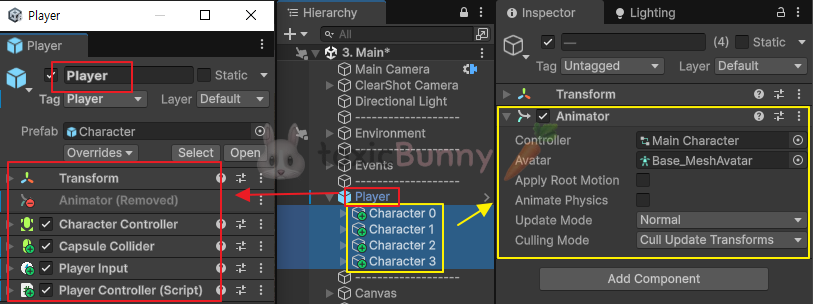
캐릭터 외형을 독립적으로 사용하기 위해서
부모 Player 오브젝트엔 이동/입력/충돌/컨트롤러 컴포넌트만 두고
자식에는 캐릭터 외형 프리팹만(메시+Animator) 넣고 비활성화한다.
🚨 자식 인덱스 순서와 선택 인덱스가 같도록 해주어야 원하는 캐릭터로 반환됨
6. TIC TAC TOE 게임 AI 구현
위에서 구현한 틱택톡 게임의 플레이어는 1, 2 둘 다 게임을 하는 사용자다.
플레이어 2의 경우 AI을 활용하여 컴퓨터와 대결하는 로직을 구현해보려고 한다.
using UnityEngine;

public class BoardAI
{
    public static float Negamax(Board board, int maxDepth, int currentDepth, ref Move bestMove)
    {
        if (board.IsGameOver() || currentDepth == maxDepth)
        {
            return board.Evaluate(board.GetCurrentPlayer());
        }

        float bestScore = Mathf.NegativeInfinity;

        foreach (Move m in board.GetMoves())
        {
            Board b = board.MakeMove(m);
            Move currentMove = null;

            float recursedScore = Negamax(b, maxDepth, currentDepth + 1, ref currentMove);
            float currentScore = -recursedScore;

            if (currentScore > bestScore)
            {
                bestScore = currentScore;
                bestMove = m;
            }
        }
        return bestScore;
    }
}
주요 AI 로직 구현한 코드만 살펴보겠다.
Negamax 함수는 “내 최선 = 상대 최악”을 이용해 재귀로 모든 수를 탐색하고 가장 좋은 수(bestMove)와 그 점수(가치)를 찾는 함수이다.
[기저 조건]
if (board.IsGameOver() || currentDepth == maxDepth)
    return board.Evaluate(board.GetCurrentPlayer());
게임이 끝났거나 깊이 제한에 도달하면 지금 차례인 플레이어 기준으로 점수를 평가해서 반환 (예: 이 플레이어가 이긴 상태면 +1, 진 상태면 -1, 무승부 0 등)
[모든 합법 수 시뮬레이션]
foreach (Move m in board.GetMoves()) {
    Board b = board.MakeMove(m);      // m을 두고
    Move currentMove = null;          // (재귀용 더미)
    float recursed = Negamax(b, maxDepth, currentDepth+1, ref currentMove);
    float score = -recursed;
}
MakeMove(m)으로 상대)의 보드를 만들고 재귀 호출
재귀가 돌려준 점수는 상대 관점의 가치
현재 관점으로 바꾸려고 부호를 반전(score = -recursed)
[최선 수와 점수 갱신]
if (currentScore > bestScore) {
    bestScore = currentScore;
    bestMove = m; // 현재 노드(현재 차례)에서의 최선 수 저장
}
루프가 끝나면 이 노드에서 최선 점수를 반환
[재귀 과정]
Root (X 차례)
├─ m1 → A (O 차례)
│   ├─ a1 → 리프: O 승리 → eval=+1( O 관점 ) → ↑부호반전 → -1 (X 관점)
│   └─ a2 → 리프: 무승부 → eval= 0( O 관점 ) → ↑부호반전 →  0 (X 관점)
│   ⇒ A의 최선 = max(-1, 0) = 0   → m1의 점수 = 0
│
├─ m2 → B (O 차례)
│   ├─ b1 → 리프: O 패배 → eval=-1( O 관점 ) → ↑부호반전 → +1 (X 관점)
│   └─ b2 → 리프: 무승부 → eval= 0( O 관점 ) → ↑부호반전 →  0 (X 관점)
│   ⇒ B의 최선 = max(+1, 0) = +1 → m2의 점수 = +1
│
└─ m3 → C (O 차례)
    └─ c1 → 리프: O 승리 → eval=+1( O 관점 ) → ↑부호반전 → -1 (X 관점)
    ⇒ C의 최선 = -1              → m3의 점수 = -1

Root 선택: max( m1=0, m2=+1, m3=-1 ) = **m2**  → `bestMove = m2`