Carrot
본문 바로가기
Unity/멋쟁이사자처럼 부트캠프

[멋쟁이사자처럼부트캠프] 유니티 게임 개발 5기(60일차) - 농장 게임 (2)

by 독기품은토끼 2025. 8. 12.
✅ 오늘의 학습 목표
1. 농장 게임 만들기 (2) - 블렌드 트리, 터레인, 씨네머신, 레이캐스트 등

1. Blend Tree 적용


Idle상태와 Move(Walk) 상태에 이어서 Run 상태를 구현해주려고 한다.


Run 액션 추가

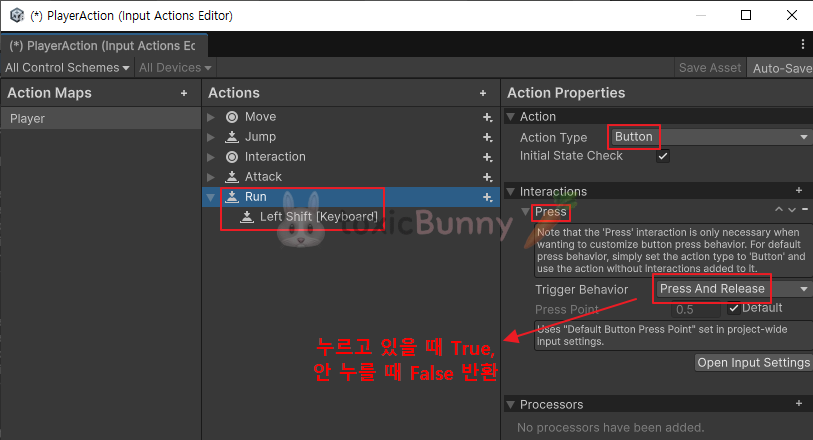
우선 Player Action에 Run 액션을 추가했다.

  • 키: LeftShift
  • Action Type: Button
  • Interaction: Press And Release

이렇게 하면 Shift 키를 누르고 있는 동안 true, 뗄 때 false를 반환해 달리기 여부를 쉽게 판별할 수 있다.


Transition 대신 Blend Tree

Idle, Walk, Run처럼 상태 전환이 많은 경우 애니메이션 Transition을 하나씩 연결하면 작업이 복잡해진다.
이럴 경우에는 Blend Tree를 사용하는 것이 효율적이다.

  • Move 파라미터 값이 0이면 Idle
  • 0.5면 Walk
  • 1이면 Run
namespace Farm
{
    public class PlayerController : MonoBehaviour
    {
        private bool isRun;

        private float currentSpeed;
        private float walkSpeed = 2f;
        private float runSpeed = 5f;

        void Update()
        {
            SetAnimation();
        }

        private void OnRun(InputValue value)
        {
            isRun = value.isPressed;
        }

        private void SetAnimation()
        {
            float targetValue = 0f;
            if (moveInput != Vector3.zero)
            {
                targetValue = isRun ? 1f : 0.5f;
                currentSpeed = isRun ? runSpeed : walkSpeed;
            }

            float animValue = anim.GetFloat("Move");
            animValue = Mathf.Lerp(animValue, targetValue, 10f * Time.deltaTime);

            anim.SetFloat("Move", animValue);
        }
    }
}


Update에서 SetAnimation()을 호출해 이동 상태에 따라 Move 값을 갱신한다.

  • 이동 입력이 없으면 Move = 0
  • 이동 중일 때 Run 상태면 Move = 1, 아니면 0.5
  • Mathf.Lerp로 값이 부드럽게 변경되도록 처리

이 방식 덕분에 Idle ↔ Walk ↔ Run 전환이 매끄럽게 이루어진다.


2. Terrain

🥕 예행 작업
1. Assets 다운로드
 

Unity Terrain - URP Demo Scene | 3D 주변환경 | Unity Asset Store

Elevate your workflow with the Unity Terrain - URP Demo Scene asset from Unity Technologies. Find this & other 주변환경 options on the Unity Asset Store.

assetstore.unity.com


Stylized country house | 3D 소품 | Unity Asset Store

Elevate your workflow with the Stylized country house asset from MaxiBrut. Find this & other 소품 options on the Unity Asset Store.

assetstore.unity.com


Low Poly Farm Pack Lite | 3D 공장 | Unity Asset Store

Elevate your workflow with the Low Poly Farm Pack Lite asset from JustCreate. Find this & other 공장 options on the Unity Asset Store.

assetstore.unity.com

+ 강사님 ZIP 파일 (Ground)


1. Terrain Layer 추가

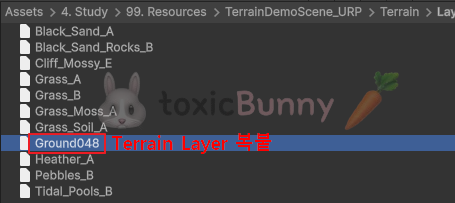
강사님 ZIP 파일에 포함된 Ground 텍스처를 Terrain Layer로 사용하려면 Terrain Layer 타입의 파일이 필요하다.


기존에 다운로드한 에셋 중에서 아무 Terrain Layer를 복사한 뒤,
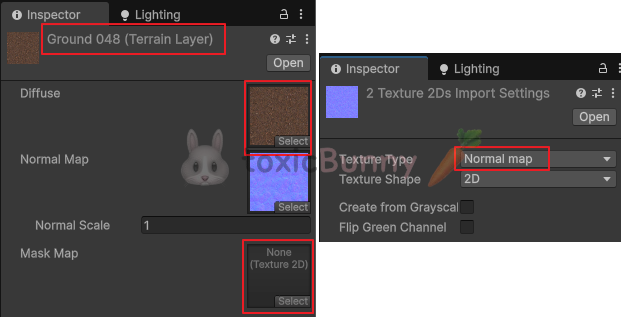
그 안에 새로 사용할 Ground 텍스처를 적용했다.


  • Albedo : Ground 텍스처 적용
  • Normal Map : 타입을 Normal Map으로 변경 후 적용
  • Mask Map : 없어도 무방


2. 맵 제작


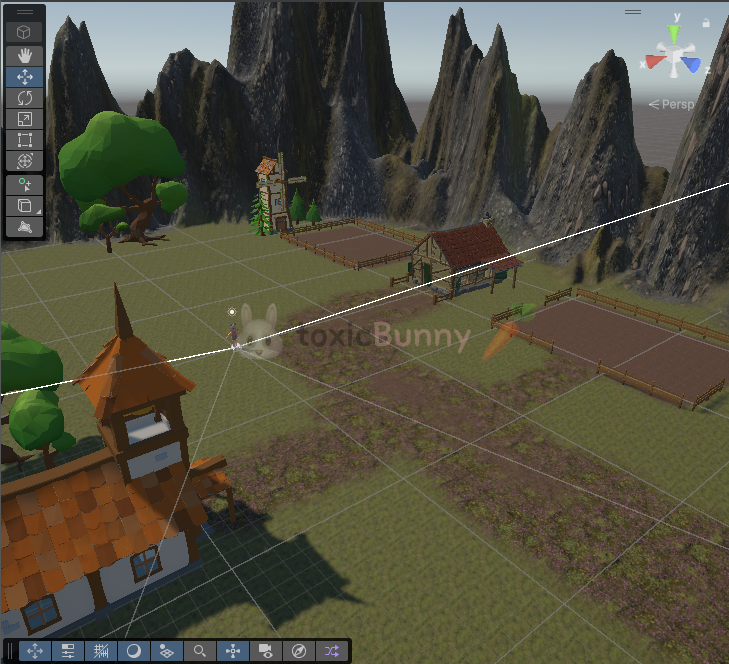
Terrain에 각종 에셋을 배치해 맵을 구성하였다.

  • 농경지
  • 가축 우리
  • 집, 나무 등 소품


3. Cinemachine Camera

플레이어가 특정 위치로 가면 Cinemachine 카메라가 작동되도록 해주려고 한다.

1. Outside


  1. Outside Cinemachine 카메라 생성
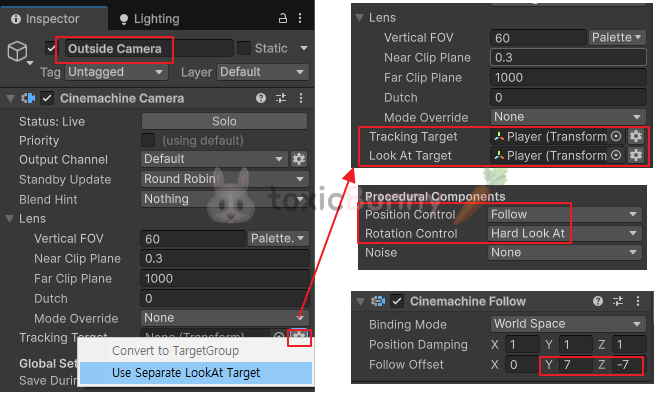
    • 새로운 CinemachineCamera를 만들고 이름을 Outside로 설정
  2. 플레이어 추적 설정
    • Tracking Target : 카메라가 추적할 위치 기준점 지정 → Player 오브젝트 연결
    • Look At : 카메라가 바라볼 시선의 대상 지정  Player 오브젝트 연결
  3. Procedural Components 설정
    • Position Control → Follow : 대상(Player)의 위치를 따라가는 역할
    • Rotation Control → Hard Look At : 대상을 정확하게 응시하는 역할
  4. 카메라 위치 조정
    • Cinemachine Follow 컴포넌트의 Offset 값을 변경해 원하는 시야각과 거리를 맞춘다.

이 외의 씨네머신 기능은 아래 포스팅에서 다루었으니 참고 바란다.


[멋쟁이사자처럼부트캠프] 유니티 게임 개발 5기(52일차) - FPS 게임 마무리 (9)

✅ 오늘의 학습1. 씨네머신 활용2. 3D 모델링 애니메이션 & 리깅 실습1. 씨네머신 (Cinemachine)1. Cinemachine Track 씨네머신은 게임 플레이 도중에 정해진 연출을 보여주는 기능으로 오프닝이나 엔딩 또

toxicbunny.tistory.com


2. Top down View


  1. 카메라 생성
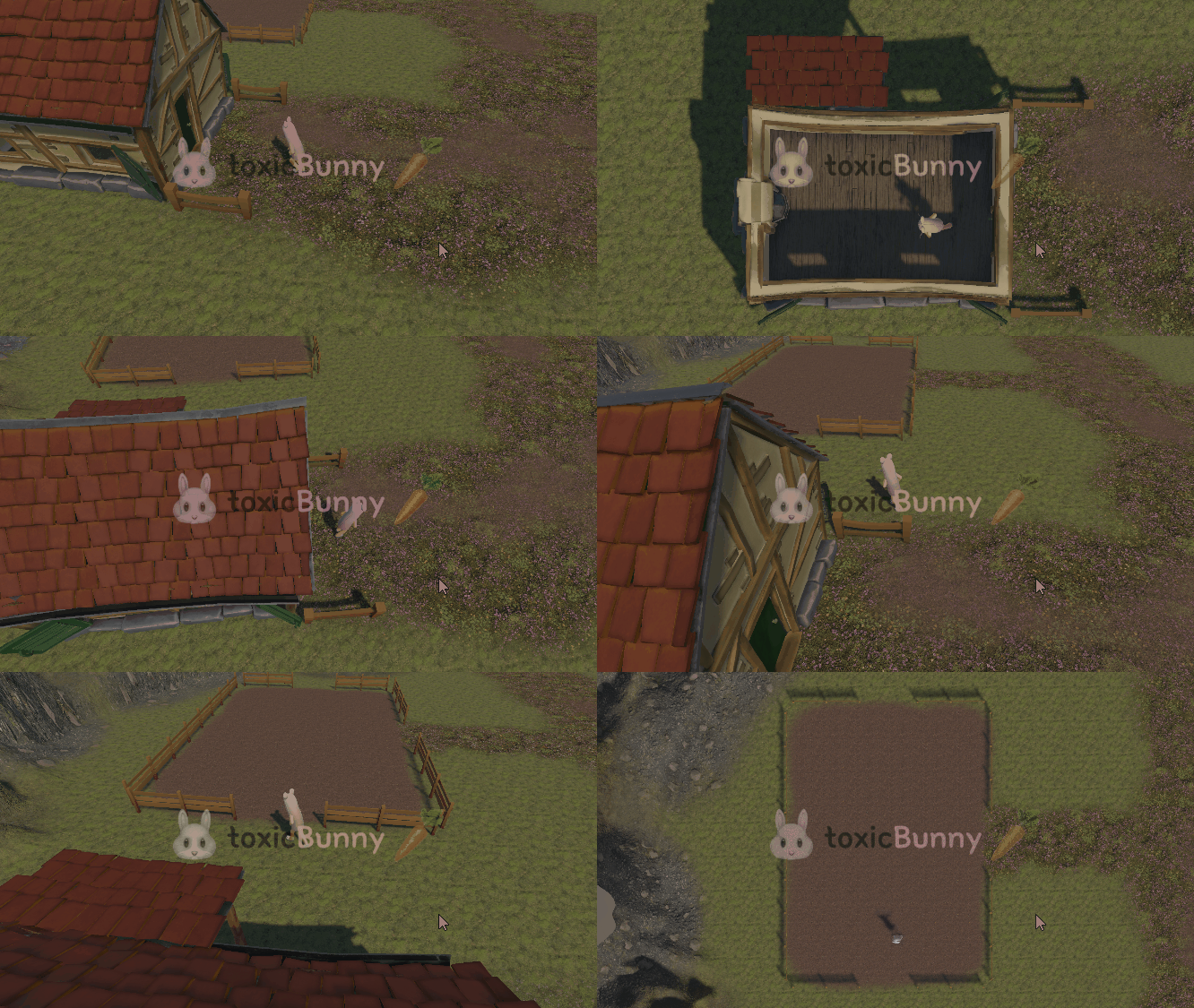
    • 농장 전용, 하우스 전용 Cinemachine Camera를 각각 생성
  2. 시점 설정
    • Mode Override → Orthographic
    • 탑다운 뷰(Top-Down View)를 구현하기 위해 직교(Orthographic) 카메라 모드 사용
  3. Main Camera의 Lens Mode Override 체크
    • Main Camera의 Lens Mode Override를 활성화하면,
      Cinemachine Camera가 모드(Perspective/Orthographic)를 바꿔도 Main Camera가 해당 설정을 즉시 반영한다.
    • 이걸 체크하지 않으면 Cinemachine Camera에서 Orthographic을 설정해도 Main Camera가 여전히 Perspective로 렌더링할 수 있다.


4. ClearShot Camera

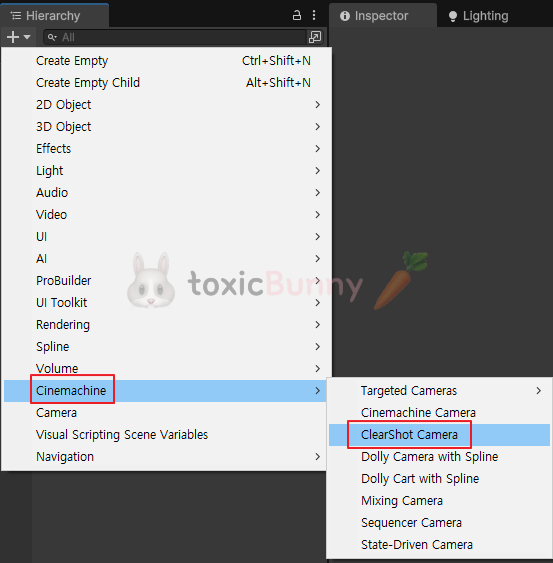
1. ClearShot Camera 생성

ClearShot Camera는 여러 개의 Cinemachine Camera 중에서 현재 상황에서 가장 좋은 뷰를 선택해 주는 카메라이다.
즉, 장애물이나 시야 가림이 발생하면 다른 카메라로 부드럽게 전환되도록 할 수 있다는 뜻이다.


  1. ClearShot 카메라 생성 및 구성
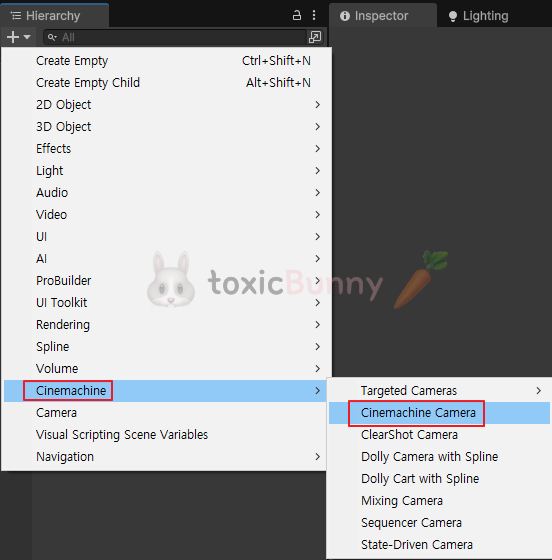
    • Hierarchy에서 Cinemachine ClearShot 생성
    • 사용하려는 가상 카메라들(Outside Camera, Field Camera, House Camera)을 ClearShot의 자식 오브젝트로 배치
    • Priority로 우선순위 설정 (숫자가 높을수록 우선 적용)
  2. Cinemachine Deoccluder
    • 각 자식 카메라에 Cinemachine Deoccluder 컴포넌트 추가
    • Avoid Obstacles 체크 (카메라와 플레이어 사이에 장애물이 생기면 다른 ClearShot 카메라로 전환)


2. 충돌 처리

using Unity.Cinemachine;
using UnityEngine;

public class HouseEvent : MonoBehaviour
{
    [SerializeField] private CinemachineClearShot clearShot; // 관리 카메라
    [SerializeField] private GameObject houseTop; // 지붕

    private void OnTriggerEnter(Collider other)
    {
        if (other.CompareTag("Player"))
        {
            houseTop.SetActive(false);
            clearShot.ChildCameras[0].Priority = 1;
            clearShot.ChildCameras[2].Priority = 10;
        }
    }

    private void OnTriggerExit(Collider other)
    {
        if (other.CompareTag("Player"))
        {
            houseTop.SetActive(true);
            clearShot.ChildCameras[0].Priority = 10;
            clearShot.ChildCameras[2].Priority = 1;
        }
    }
}


  • 집 내부에 Cube 오브젝트를 배치하고 Mesh Renderer를 끈 뒤 트리거로 사용한다.
  • 플레이어가 이 콜라이더에 들어올 때와 나갈 때를 기준으로 탑다운 뷰 카메라가 전환되도록 구현하였다.
  • 이때 CompareTag("Player") 조건을 넣지 않으면 기존에 배치된 Terrain과도 충돌 처리가 되므로 반드시 플레이어와의 충돌일 때만 동작하도록 설정해야 한다.


5. 농작물

🥕 예행 작업
1. Asset 다운로드
 

Cartoon Farm Crops | 3D 초목 | Unity Asset Store

Elevate your workflow with the Cartoon Farm Crops asset from False Wisp Studios. Find this & other 초목 options on the Unity Asset Store.

assetstore.unity.com


농장에 농작물을 심고

농작물의 성장에 따라 외형이 바뀌는 것을 구현하려고 한다.


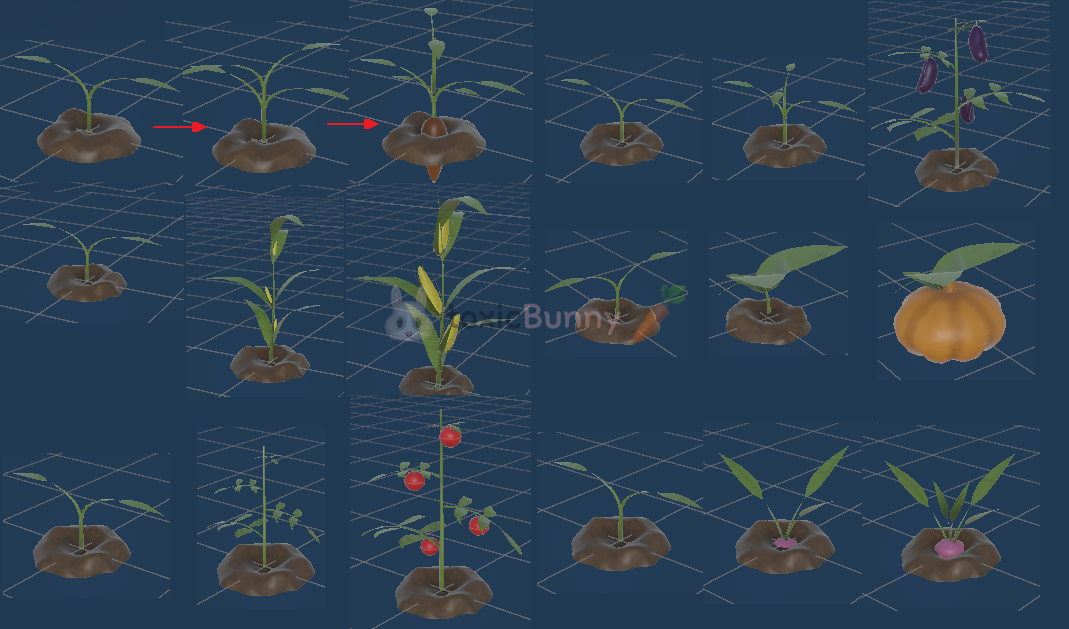
1. 농작물 외형 만들기


농작물의 성장 단계에 따라 외형이 달라지도록 프리팹의 오브젝트들을 다듬어주었다.


2. 타일 프리팹

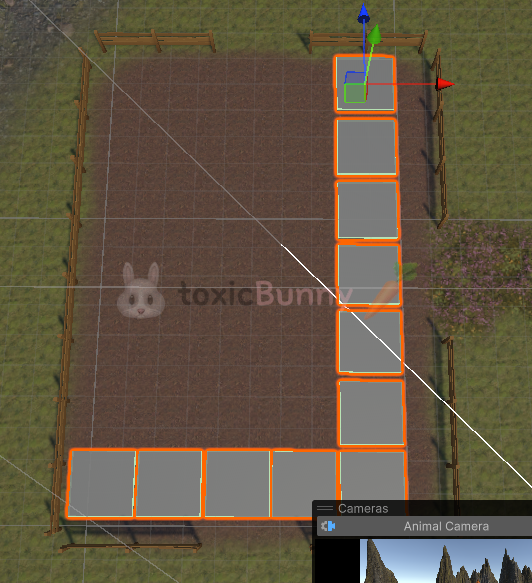
농장에 농작물을 규칙적으로 심기 위하여 타일 작업을 먼저 해줄 것이다.


2x2 크기의 타일을 기본 단위로 해서 농장에 몇 칸을 배치할 수 있는지 확인하였다.
내가 만든 농장은 가로 6칸 × 세로 8칸이기에 해당 크기만큼 타일 프리팹을 만들어주면 된다.


using UnityEngine; 

public class FieldManager : MonoBehaviour
{
    [SerializeField] private GameObject tilePrefab;
    [SerializeField] private Vector2 fieldSize = new Vector2(6, 8); 
    [SerializeField] private float tileSize = 2f;

    private GameObject[,] tileArray;
    private Camera mainCamera;

    void Awake()
    {
        mainCamera = Camera.main;
        tileArray = new GameObject[(int)fieldSize.x, (int)fieldSize.y];

        CreateField();
    }

    private void CreateField()
    {
        float offsetX = (fieldSize.x - 1) * tileSize / 2;
        float offsetY = (fieldSize.y - 1) * tileSize / 2;

        for (int i = 0; i < fieldSize.x; i++)
        {
            for (int j = 0; j < fieldSize.y; j++)
            {
                float posX = transform.position.x + i * tileSize - offsetX;
                float posZ = transform.position.z + j * tileSize - offsetY;

                GameObject tileObj = Instantiate(tilePrefab, transform);
                
                tileObj.name = $"Tile_{i}_{j}";
                tileObj.transform.position = new Vector3(posX, 0, posZ);
                tileArray[i, j] = tileObj;
            }
        }
    }
}


  1. 타일 배열 생성
    • tileArray에 모든 타일 오브젝트를 저장
    • 타일 프리팹은 2x2사이즈의 큐브를 사용해 주었음
  2. 반복문으로 타일 생성
    • i = 가로 인덱스, j = 세로 인덱스
    • 각 칸의 월드 좌표를 계산 (posX, posZ)
    • 프리팹을 Instantiate해서 해당 위치에 배치
    • 이름을 "Tile_가로_세로" 형태로 지정해서 디버깅 편하게
  3. 결과
    • 실행하면 중앙 기준으로 6×8 타일이 깔림
    • 한 칸마다 농작물 심기 가능
    • 해당 스크립트를 File Manager 오브젝트에 넣어 오브젝트의 포지션을 농장에 맞추면 된다.


3. 농작물 심기

카메라가 Fleid 카메라로 전환된 경우 = 플레이어가 농장 안으로 들어온 경우에만

농작물이 심어질 수 있도록 GamaManager를 통해 관리해주려고 한다.

using Unity.Cinemachine;
using UnityEngine;

public enum CameraState { Outside, Field, House, Animal }

public class GameManager : Singleton<GameManager>
{
    public CameraState cameraState = CameraState.Outside;

    [SerializeField] private CinemachineClearShot clearShot;

    public void SetCameraState(CameraState newState)
    {
        if (cameraState != newState)
        {
            cameraState = newState;

            foreach (var camera in clearShot.ChildCameras)
                camera.Priority = 1;

            clearShot.ChildCameras[(int)cameraState].Priority = 10;
        }
    }
}


기존에 FieldEvent, HouseEvent, AnimalEvent 스크립트에서 각각 동일하게 처리하던 카메라 우선순위 로직을 통합하기 위해 clearShot 오브젝트를 삭제하고, CameraState 값을 기반으로 조건문 안에서 직접 우선순위를 지정하도록 수정했다.


using UnityEngine;

public class Tile : MonoBehaviour
{
    public Vector2Int arrayPos;
}


타일 좌표를 받아오기 위하여 Tile 클래스를 만들어 주었고


using UnityEngine;

public class FieldManager : MonoBehaviour
{
    public enum FieldState { Seed, Harvest }
    public FieldState fieldState;

    [SerializeField] private GameObject tilePrefab;
    [SerializeField] private Vector2 fieldSize = new Vector2(6, 8);
    [SerializeField] private float tileSize = 2f;

    public GameObject plantPrefab;

    private GameObject[,] tileArray;
    private Camera mainCamera;
    [SerializeField] private LayerMask fieldLayerMask;

    void Awake()
    {
        mainCamera = Camera.main;
        tileArray = new GameObject[(int)fieldSize.x, (int)fieldSize.y];

        CreateField();
    }

    void Update()
    {
        if (GameManager.Instance.cameraState == CameraState.Field)
        {
            switch (fieldState)
            {
                case FieldState.Seed:
                    OnSeed();
                    break;
                case FieldState.Harvest:
                    OnHarvest();
                    break;
            }
        }
    }

    private void CreateField()
    {
        float offsetX = (fieldSize.x - 1) * tileSize / 2;
        float offsetY = (fieldSize.y - 1) * tileSize / 2;

        for (int i = 0; i < fieldSize.x; i++)
        {
            for (int j = 0; j < fieldSize.y; j++)
            {
                float posX = transform.position.x + i * tileSize - offsetX;
                float posZ = transform.position.z + j * tileSize - offsetY;

                GameObject tileObj = Instantiate(tilePrefab, transform.GetChild(0));

                tileObj.name = $"Tile_{i}_{j}";
                tileObj.transform.position = new Vector3(posX, 0, posZ);
                // tileArray[i, j] = tileObj;

                tileObj.GetComponent<Tile>().arrayPos = new Vector2Int(i, j);
            }
        }
    }

    private void OnSeed()
    {
        if (Input.GetMouseButtonDown(0))
        {
            Ray ray = mainCamera.ScreenPointToRay(Input.mousePosition);
            RaycastHit hit;

            if (Physics.Raycast(ray, out hit, 100f, fieldLayerMask))
            {
                Tile tile = hit.collider.GetComponent<Tile>();
                int tileX = tile.arrayPos.x;
                int tileY = tile.arrayPos.y;

                if (tileArray[tileX, tileY] == null)
                {
                    GameObject plant = Instantiate(plantPrefab, transform.GetChild(1));
                    plant.transform.position = hit.transform.position;

                    tileArray[tileX, tileY] = plant;
                }
            }
        }
    }

    private void OnHarvest()
    {

    }
}


  1. 마우스 클릭 위치 감지
    • 마우스로 클릭한 위치가 어느 타일인지 알아내기 위해 Raycast 활용
    • fieldLayerMask를 통해서 필드 타일만 충돌 대상으로 설정
    • 충돌한 오브젝트에서 Tile 컴포넌트를 꺼내 arrayPos로 타일의 좌표 파악
    • 농작물이 심어져있지 않은 경우에만 plantPrefab을 해당 위치에 생성
    • tileArray[x, y]에 생성된 농작물을 참조 저장
  2. Raycast 로직 상세
    • Input.GetMouseButtonDown(0) 왼쪽 클릭 확인
    • mainCamera.ScreenPointToRay(Input.mousePosition)로 레이 생성
    • Physics.Raycast()를 사용하고, fieldLayerMask로 필드 타일만 충돌 대상 지정
    • hit.collider.GetComponent<Tile>()로 arrayPos 좌표 확인
    • tileArray[x, y] == null일 때만 프리팹 생성, 배열에 저장
  3. 심기 / 수확 로직
    • Update문에서 현재 Field State가 어떤지 확인
    • 당장은 심기 로직만 구현하였으나 추후 수확 로직도 손쉽게 구현 가능


오늘은 터레인 만질 때 익숙하지가 않아서 진짜 엄청 뒤처졌었다

급하게 부랴부랴 따라가느라 정신이 너무 없었다.. 3시간 동안 한 번도 못 쉬고 ㅠㅠ 에러 고치고 진도 따라가고 우웩

오늘 진짜 너무 힘들었따!! 하지만 보람차니 됐어.. 아자아자 화이팅