Carrot
본문 바로가기
Unity/멋쟁이사자처럼 부트캠프

[멋쟁이사자처럼부트캠프] 유니티 게임 개발 5기(61일차) - 농장 게임 (3)

by 독기품은토끼 2025. 8. 13.
✅ 오늘의 학습 목표
1. 농장 게임 만들기 (3)

1. 농작물

1. 농작물 Level

농작물의 성장 단계에 따라서 프리팹의 모양이 바뀌도록 설정해주려고 한다.

public class Plant : MonoBehaviour
{
    private enum PlantState {  Level1, Level2, Level3 }
    private PlantState plantState;

    private DateTime startTime, growhTime, harvestTime;

    public int plantIndex;
    public bool isHarvest = false;

    void Awake()
    {
        startTime = DateTime.Now; // 현재 시간 활용
        growhTime = startTime.AddSeconds(5);
        harvestTime = startTime.AddSeconds(10);
    }

    IEnumerator Start()
    {
        SetState(PlantState.Level1);

        while (plantState != PlantState.Level3)
        {
            if (DateTime.Now >= harvestTime)
            {
                SetState(PlantState.Level3);
                isHarvest = true;
            }
            else if (DateTime.Now >= growhTime)
                SetState(PlantState.Level2);

            yield return new WaitForSeconds(1f);
        }
    }

    private void SetState(PlantState newState)
    {
        if (plantState != newState || plantState == PlantState.Level1)
        {
            plantState = newState;

            for (int i = 0; i < 3; i++) // 식물 프리팹 중 흙 빼고 모두 끄기
                transform.GetChild(i).gameObject.SetActive(false);

            transform.GetChild((int)plantState).gameObject.SetActive(true); // 특정 레벨 프리팹만 활성화
        }
    }
}


1. SetState

  • Enum으로 PlantState (Level 1 → 2 → 3) 성장 상태 관리
  • 0~2번 자식을 전부 SetActive(false)로 만든 뒤 현재 상태의 인덱스 (int)plantState에 해당하는 자식만 SetActive(true)

2. DateTime.Now

  • 시작하자마자 심은 시점(startTime)을 기록하고
  • 5초 뒤에는 성장(growhTime)
  • 0초 뒤에는 수확 가능(harvestTime) 상태로 만든다.


2. 농작물 UI

using UnityEngine;
using UnityEngine.UI;

public class UIManager : MonoBehaviour
{
    [SerializeField] private GameObject outSideUI;
    [SerializeField] private GameObject fieldUI;
    [SerializeField] private GameObject houseUI;
    [SerializeField] private GameObject animalUI;
    [SerializeField] private GameObject seedUI;
    [SerializeField] private GameObject inventoryUI;

    [SerializeField] private Button seedButton;
    [SerializeField] private Button harvestButton;
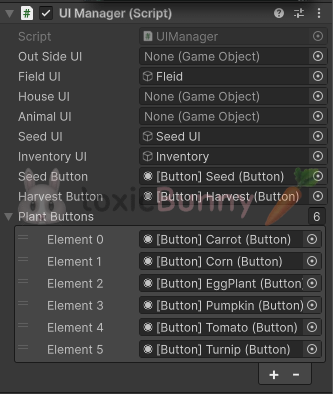
    [SerializeField] private Button[] plantButtons;
    
    void Awake()
    {
        seedButton.onClick.AddListener(OnSeedButton);
        harvestButton.onClick.AddListener(OnHarvestButton);

        for (int i = 0; i < plantButtons.Length; i++)
        {
            int j = i;
            plantButtons[i].onClick.AddListener(() => GameManager.Instance.field.SetPlant(j));
        }
    }

    void Update()
    {
        if (Input.GetKeyDown(KeyCode.I))
        {
            inventoryUI.SetActive(!inventoryUI.activeSelf);
        }
    }

    private void OnSeedButton()
    {
        GameManager.Instance.field.SetState(FieldManager.FieldState.Seed);
        seedUI.SetActive(true);
    }

    private void OnHarvestButton()
    {
        GameManager.Instance.field.SetState(FieldManager.FieldState.Harvest);
        seedUI.SetActive(false);
    }

    public void ActivateFieldUI(bool isActive)
    {
        fieldUI.SetActive(isActive);
    }
}


1. Awake() – UI 버튼 리스너 등록

  • seedButton 클릭 시 → 씨앗 심기 모드(FieldState.Seed)로 전환하고 오른쪽 씨앗 선택 UI 활성화
  • harvestButton 클릭 시 → 수확 모드(FieldState.Harvest)로 전환하고 씨앗 선택 UI 비활성화
  • plantButtons[] 각각 클릭 시 → 해당 인덱스 식물 심기 실행 (SetPlant(j) 호출)
  • 클로저 이슈 방지를 위해 int j = i; 로 로컬 변수에 담아 사용

2. OnSeedButton() – 씨앗 심기 모드 전환

  • FieldState.Seed로 상태 변경
  • 오른쪽 씨앗 선택 UI(seedUI) 활성화

3. OnHarvestButton() – 수확 모드 전환

  • FieldState.Harvest로 상태 변경
  • 씨앗 선택 UI 비활성화

4. ActivateFieldUI(bool isActive) – 왼쪽 필드 UI 제어

  • 왼쪽 UI(fieldUI)를 켜거나 끄는 메서드
  • 필드에 들어갈 때 켜고, 나올 때 끄는 식으로 외부에서 호출 가능


🚨 클로저 이슈

람다식은 변수의 값이 아니라 변수 그 자체를 참조한다.

for (int i = 0; i < N; i++)에서 i는 루프 전체를 통틀어 하나뿐인 동일 변수다.
버튼을 누르는 시점은 보통 루프가 끝난 나중 시점이라 그때 i의 값은 이미 N(마지막 + 1)이 되어 있다.
그래서 다음 코드는 모든 버튼 리스너가 동일한 i(=N)를 사용하게 된다 → 인덱스 범위 초과/모두 같은 동작

따라서 i의 값을 복사한 지역 변수를 만들어 활용해 주었다.


// 필드 매니저 스크립트
public enum FieldState { None, Seed, Harvest }

[SerializeField] private int currentPlantIndex;
[SerializeField] private GameObject[] plants;

    void Update()
    {
        if (fieldState != FieldState.None)
        {
            switch (fieldState)
            {
                case FieldState.Seed:
                    OnSeed();
                    break;
                case FieldState.Harvest:
                    OnHarvest();
                    break;
            }
        }
    }
    
private void OnSeed()
    {
        if (Input.GetMouseButtonDown(0))
        {
            Ray ray = mainCamera.ScreenPointToRay(Input.mousePosition);
            RaycastHit hit;

            if (Physics.Raycast(ray, out hit, 100f, fieldLayerMask))
            {
                Tile tile = hit.collider.GetComponent<Tile>();
                int tileX = tile.arrayPos.x;
                int tileY = tile.arrayPos.y;

                if (tileArray[tileX, tileY] == null)
                {
                    GameObject plant = Instantiate(plants[currentPlantIndex], transform.GetChild(1));
                    plant.transform.position = hit.transform.position;

                    plant.GetComponent<Plant>().plantIndex = currentPlantIndex;

                    tileArray[tileX, tileY] = plant;
                }
            }
        }
    }
    
public void SetPlant(int index)
{
    currentPlantIndex = index;
}

public void SetState(FieldState newState)
{
    if (fieldState != newState)
    {
        fieldState = newState;
    }
}


1. Plant 스크립트와 연동

  • 심을 때 plant.plantIndex 값을 설정해 이후 수확 로직에서 참조 가능


3. 농작물 수확

농작물  심기와 성장을 구현하였으니

이번에는 농작물 수확을 구현하려고 한다.

using UnityEngine;

public class BillboardCamera : MonoBehaviour
{
    private Transform mainCamera;

    void Start()
    {
        mainCamera = Camera.main.transform;
    }

    void LateUpdate()
    {
        transform.LookAt(mainCamera.transform);
    }
}


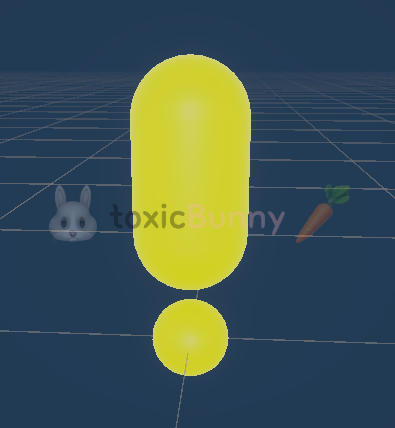
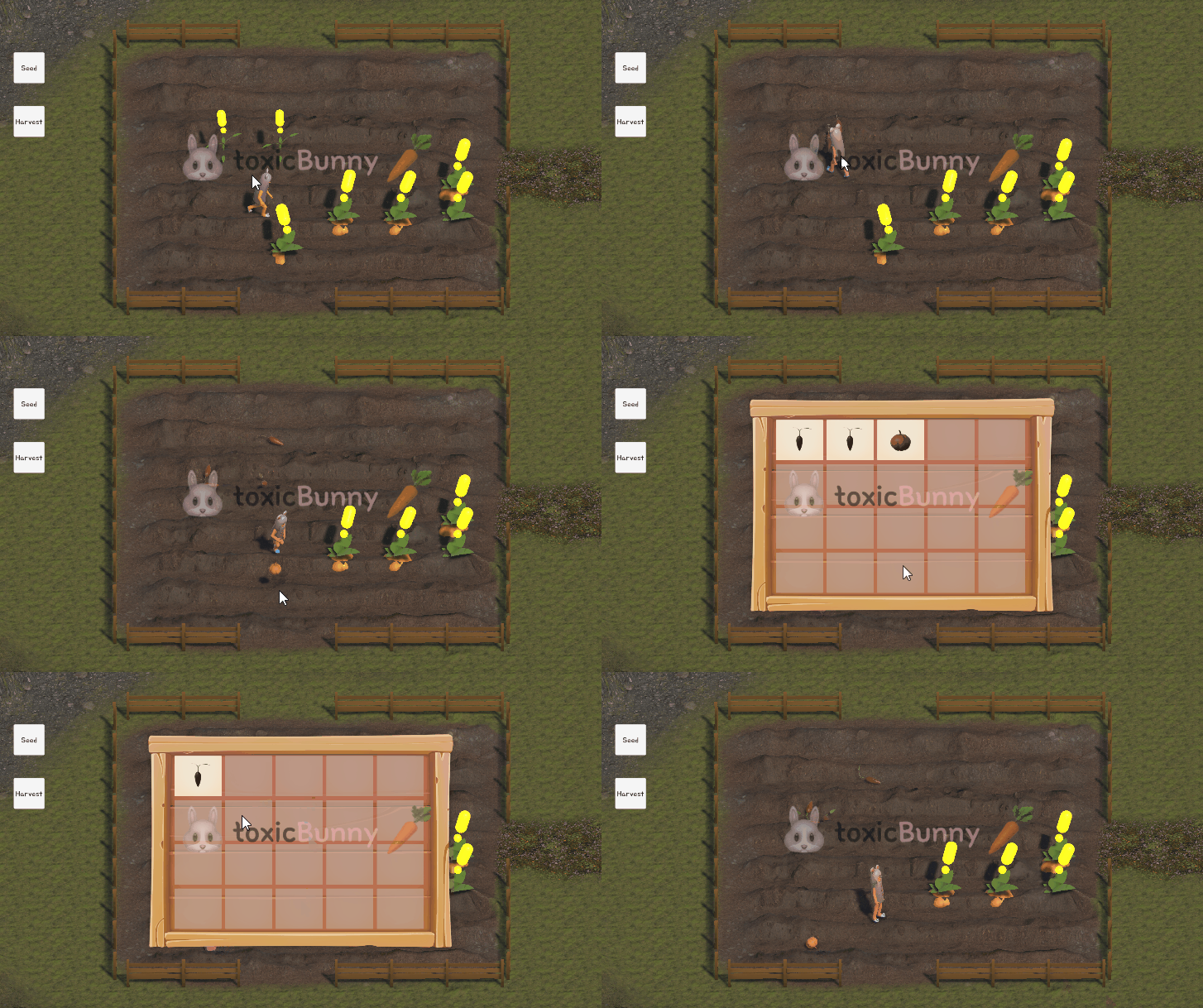
우선 농작물이 모두 성장하면 머리 위에 느낌표 프리팹을 띄워 플레이어가 한눈에 알아볼 수 있도록 했다.
이 오브젝트에는 BillboardCamera 스크립트를 적용해 언제나 카메라를 향하도록 만들어 시야 각도와 상관없이 표시가 잘 보이게 했다.


using System.Collections;
using UnityEngine;

public class FieldManager : MonoBehaviour
{
    private void OnHarvest()
    {
        if (Input.GetMouseButtonDown(0))
        {
            Ray ray = mainCamera.ScreenPointToRay(Input.mousePosition);
            RaycastHit hit;

            if (Physics.Raycast(ray, out hit, 100f, fieldLayerMask))
            {
                Tile tile = hit.collider.GetComponent<Tile>();
                int tileX = tile.arrayPos.x;
                int tileY = tile.arrayPos.y;

                if (tileArray[tileX, tileY] != null)
                {
                    Plant plant = tileArray[tileX, tileY].GetComponent<Plant>();

                    if (plant.isHarvest)
                    {
                        tileArray[tileX, tileY].SetActive(false);
                        tileArray[tileX, tileY] = null;

                        StartCoroutine(HarvestRoutine(plant.plantIndex, hit.transform.position));
                    }
                }
            }
        }
    }

    IEnumerator HarvestRoutine(int index, Vector3 pos)
    {
        int renAmount = Random.Range(1, 4);

        for (int i = 0; i < renAmount; i++)
        {
            GameObject crop = Instantiate(crops[index], transform.GetChild(2));
            crop.transform.position = pos + Vector3.up * 0.5f;
            Rigidbody cropRb = crop.GetComponent<Rigidbody>();

            float ranX = Random.Range(-2f, 2f);
            float ranZ = Random.Range(-2f, 2f);
            var forceDir = new Vector3(ranX, 5f, ranZ);

            cropRb.AddForce(forceDir, ForceMode.Impulse);

            yield return new WaitForSeconds(0.15f);
        }

        yield return null;
    }
}


1. OnSeed()와 동일한 Raycast / 타일 좌표 구조

2. 수확 가능 여부 체크

  • Plant plant = tileArray[x, y].GetComponent<Plant>();
  • plant.isHarvest가 true일 때만 수확을 허용
    → 성장 완료 전에는 클릭을 받아도 아무 일도 일어나지 않음

3. 식물 제거 & 타일 비우기

  • SetActive(false)로 식물을 가려서 즉시 시각적으로 제거.
  • tileArray[x, y] = null로 그리드 상태 동기화(해당 칸을 비움)
    → 이후 다시 심기 가능

4. 드랍 연출

  • plant.plantIndex로 어떤 작물 프리팹을 쓸지 결정(crops[index])
  • renAmount = Random.Range(1, 4)로 1~3개 랜덤 수량 드랍
  • 스폰 위치는 pos + Vector3.up * 0.5f로 살짝 띄워서 바닥과 겹침 방지
  • 각 드랍마다 Rigidbody.AddForce(forceDir, ForceMode.Impulse)로 위(+5) + 좌우(−2~2) 임펄스를 주어 툭툭 튀는 물리감을 연출
  • yield return new WaitForSeconds(0.15f)로 순차 드랍 타이밍을 만들어 손맛 강화


4. 플레이어 중력 적용

리지드바디와 캐릭터 컨트롤러 컴포넌트는 같이 사용할 수 없어서 자체적으로 중력을 적용시켜 주었다.

// 플레이어 컨트롤러 - 수확물 먹기
private Vector3 velocity;
private const float GRVITY = -9.8f; // 중력

void Update()
{
    velocity.y += GRVITY;
    var dir = moveInput * currentSpeed + Vector3.up * velocity.y;

    cc.Move(dir * Time.deltaTime);
    Turn();
    SetAnimation();
}


2. 인벤토리

🥕 예행 작업
1. Asset 다운로드
 

2D Casual Game UI HD | 2D GUI | Unity Asset Store

Elevate your workflow with the 2D Casual Game UI HD asset from Marya_Belevich. Find this & more GUI on the Unity Asset Store.

assetstore.unity.com


1. 인벤토리 UI 제작


2. 농작물 획득 구현

using System;
using UnityEngine;

public class Crop : MonoBehaviour
{
    [SerializeField] private string cropName;
    [SerializeField] public Sprite icon;

    private void OnTriggerEnter(Collider other)
    {
        if (other.CompareTag("Player"))
        {
            Get();
        }
    }

    public void Get()
    {
        Debug.Log($"{cropName}을/를 획득 하였습니다.");
    }

    public void Use()
    {
        Debug.Log($"{cropName}을/를 사용 하였습니다.");
    }
}


  • OnTriggerEnter에서 Player 태그를 가진 오브젝트와 부딪히면 Get() 호출
  • Get()은 현재는 콘솔 로그로만 표시하지만, 여기서 인벤토리 매니저로 전달하면 실제 획득 처리가 가능하다.
  • Use()는 나중에 인벤토리에서 아이템을 사용했을 때 호출


using UnityEngine;
using UnityEngine.UI;

public class Slot : MonoBehaviour
{
    private Crop crop;

    [SerializeField] private Image slotImage;
    [SerializeField] private Button slotButton;

    public bool isEmpty = true;

    void Awake()
    {
        slotButton.onClick.AddListener(UseCrop);
    }

    void OnEnable()
    {
        slotImage.gameObject.SetActive(!isEmpty);
        slotButton.interactable = !isEmpty;
    }

    public void AddCrop (Crop crop)
    {
        isEmpty = false;

        this.crop = crop;
        slotImage.sprite = crop.icon;
    }

    private void UseCrop()
    {
        if (crop != null)
        {
            crop.Use();
            isEmpty = true;
            slotButton.interactable = false;
            slotImage.gameObject.SetActive(false);
            crop.useAction?.Invoke();
        }
    }
}


  • 아이템 추가: AddCrop()에서 슬롯을 채우고 아이콘 이미지를 갱신
  • 버튼 클릭 이벤트: 슬롯 버튼을 누르면 UseCrop() 실행
  • 등록된 Crop의 Use() 메서드 호출 → 사용 효과 처리
  • 슬롯 상태 초기화 (isEmpty = true, 버튼 비활성, 이미지 숨김)
  • crop.useAction 호출로 ItemManager의 UseItem() 연결 실행 → 전체 개수 감소


using System.Collections.Generic;
using UnityEngine;

public class ItemManager : MonoBehaviour
{
    [SerializeField] private Transform slotGroup;
    [SerializeField] private Slot[] slots;
    [SerializeField] private GameObject slotPrefab;

    [SerializeField] private int slotAmount = 20;
    private int itemCount = 0;

    void Start()
    {
        for (int i = 0; i < slotAmount; i++)
        {
            Instantiate(slotPrefab, slotGroup);
        }
        
        slots = slotGroup.GetComponentsInChildren<Slot>();
    }

    public void GetItem(Crop crop)
    {
        foreach (var slot in slots)
        {
            if (slot.isEmpty)
            {
                slot.AddCrop(crop);
                itemCount++;
                crop.useAction += UseItem;

                break;
            }
        }
    }

    public bool CheckItemCount()
    {
        bool result = itemCount < slotAmount;
        
        return result;
    }

    public void UseItem()
    {
        itemCount--;
    }
}
public class Crop : MonoBehaviour
{
    void Start()
    {
        useAction += Use;
    }

    public void Get()
    {
        if (GameManager.Instance.item.CheckItemCount())
        {
            GameManager.Instance.item.GetItem(this);
            Debug.Log($"{cropName}을/를 획득 하였습니다.");
            gameObject.SetActive(false);
        }
        else
        {
            Debug.Log("인벤토리가 가득 찼습니다.");
        }
    }

    public void Use()
    {
        Debug.Log($"{cropName}을/를 사용 하였습니다.");
    }
}


  • 슬롯 생성: 시작 시 slotAmount 만큼 슬롯 프리팹을 생성해 slotGroup의 자식으로 배치
  • 획득 처리: GetItem(Crop crop)을 호출하면 비어 있는 슬롯(isEmpty == true)을 찾아 해당 작물을 추가
  • 슬롯 개수 관리: 현재 아이템 개수를 itemCount로 추적
  • 사용 이벤트 연결: crop.useAction += UseItem을 통해 해당 아이템이 사용될 때 인벤토리 개수도 감소.


[전체 흐름 요약]

  1. 필드에 떨어진 농작물
    • Crop 스크립트로 플레이어와의 트리거 충돌 감지
    • ItemManager.GetItem() 호출로 인벤토리에 등록
  2. 인벤토리에 등록
    • ItemManager가 비어있는 슬롯에 AddCrop() 호출
    • 슬롯에 농작물 아이콘 표시 버튼 활성화
  3. 농작물 사용
    • 슬롯 버튼 클릭 시 UseCrop() 실행
    • Crop.Use()로 사용 처리 → UI와 인벤토리 개수 갱신


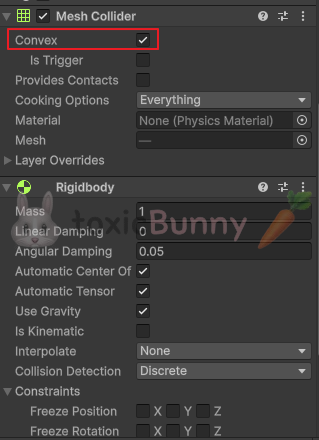
🚨 참고로 식물 프리팹의 Mesh Collider > Convex를 체크해주어야 한다.

메시 콜라이더는 정적 지형(Rigidbody 없음)용으로 동적으로 처리해 주기 위해서는 Convex를 활용해주어야 한다.


3. 날씨

🥕 예행 작업
1. Assets 다운로드
 

Full Opaque Rain | 시각 효과 | Unity Asset Store

Get the Full Opaque Rain package from Roman CHACORNAC and speed up your game development process. Find this & other 시각 효과 options on the Unity Asset Store.

assetstore.unity.com


Hail Particles Pack | 주변 환경 | Unity Asset Store

Add depth to your project with Hail Particles Pack asset from Luke Peek. Find this & more 시각 효과 options on the Unity Asset Store.

assetstore.unity.com

using System;
using System.Collections;
using UnityEngine;
using Random = UnityEngine.Random;

public enum WeatherType { Sun, Rain, Snow }

public class WeatherSystem : MonoBehaviour
{
    public WeatherType weatherType;

    public event Action<WeatherType> weatherAction;

    [SerializeField] private GameObject[] weatherParticles;

    IEnumerator Start()
    {
        while (true)
        {
            yield return new WaitForSeconds(15f);

            int weatherCount = Enum.GetValues(typeof(WeatherType)).Length;
            Debug.Log(weatherCount);

            int ranIndex = Random.Range(0, weatherCount);

            weatherType = (WeatherType)ranIndex;
            
            foreach (var particle in weatherParticles)
                particle.SetActive(false);

            weatherParticles[ranIndex].SetActive(true);

            weatherAction?.Invoke(weatherType);
        }
    }
}
public class Plant : MonoBehaviour
{
    private void SetGrowth(WeatherType weatherType)
    {
        switch (weatherType)
        {
            case WeatherType.Sun:
                // 성장 최대
                break;
            case WeatherType.Rain:
                // 성장 중간
                break;
            case WeatherType.Snow:
                // 성장 최소
                break;
        }
    }
}


  • 15초마다 Sun / Rain/ Snow 중 하나를 랜덤으로 선택하고 해당 파티클만 활성화
  • WeatherType 열거형으로 상태를 의미 있게 관리
  • Start() 코루틴에서 WaitForSeconds(15f) → 랜덤 인덱스 뽑기 → weatherType 갱신
  • weatherParticles 전부 SetActive(false) 후, 선택된 인덱스만 true
  • weatherAction?.Invoke(weatherType)으로 다른 시스템(성장률, 이동/효과음 등)에게 알림


4. 동물

🥕 예행 작업
1. Asset 다운로드
 

Animated Goat and Sheep- 3D low poly-FREE | 3D 동물 | Unity Asset Store

Elevate your workflow with the Animated Goat and Sheep- 3D low poly-FREE asset from UrsaAnimations. Find this & other 동물 options on the Unity Asset Store.

assetstore.unity.com


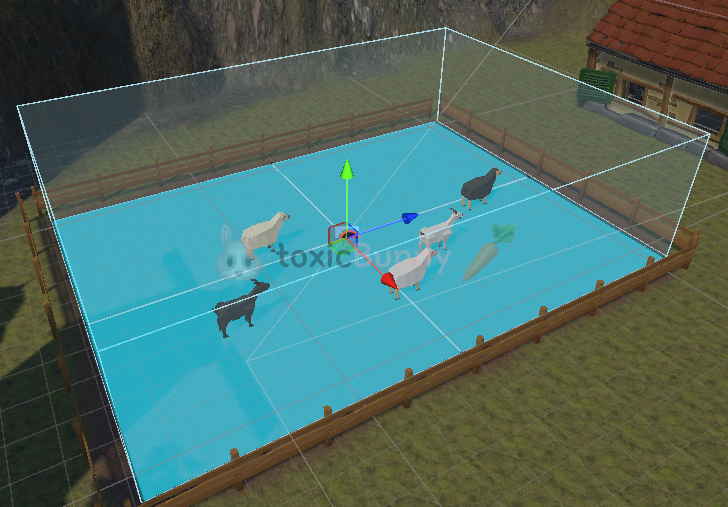
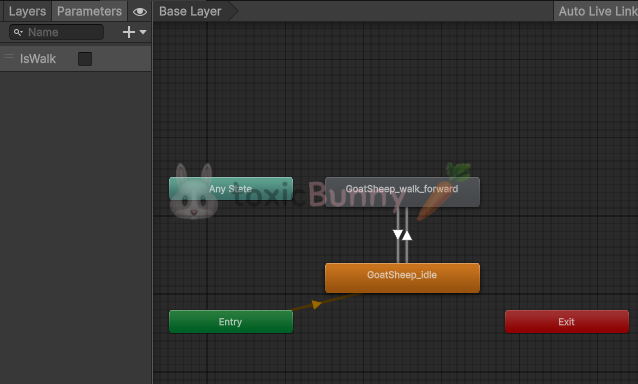
시간 관계상 Nav Surface로 동물 우리 안에만 베이크 만들어주고 동물들 애니메이션 적용