
✅ 오늘의 학습 목표
1. 플레이어
- Town 씬에서의 플레이어 동작 방식
- 카메라 이동
2. 상호작용 이벤트
- 팻말
- NPC
- 집 안팎 이동
1. 플레이어
1. 플레이어 동작 방식 변경
Town 씬에서는 탑다운뷰를 제공하기 때문에 기존 플랫포머용 동작 방식으로는 위/아래 이동이 되질 않는다.
이 부분을 수정해 주고 마을이니까 공격이나 점프 같은 기능을 사용하지 못하도록 변경할 것이다.
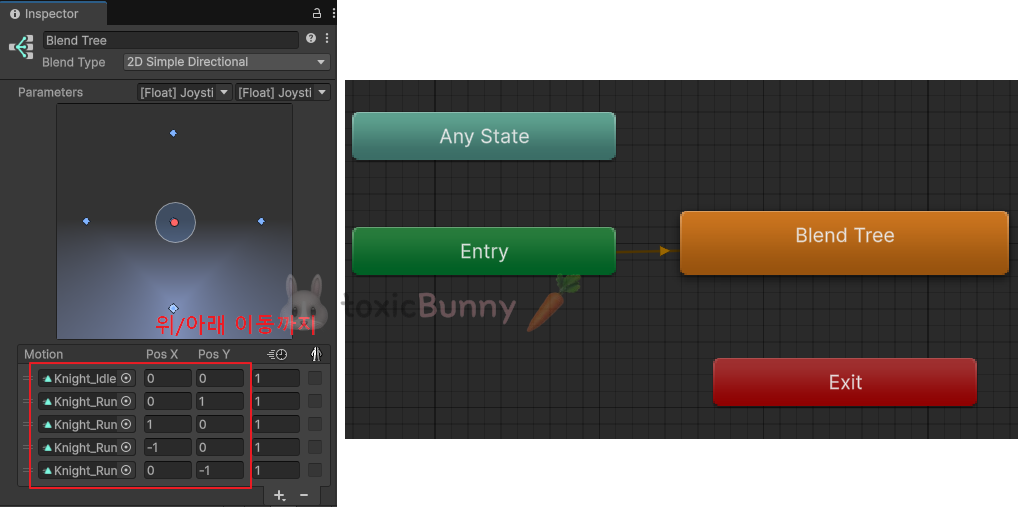
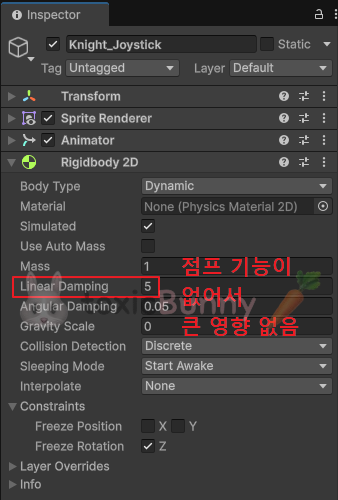
애니메이션 동작 방식도 수정해 주고, 움직일 때 밀림 현상이 있으니 Linear Damping 값을 조절해 준다.
using UnityEngine;

public class KnightController_Joystick : MonoBehaviour
{
    private Animator animator;
    private Rigidbody2D knightRb;

    private Vector3 inputDir;

    [SerializeField] private float moveSpeed = 3f;

    void Start()
    {
        animator = GetComponent<Animator>();
        knightRb = GetComponent<Rigidbody2D>();
    }

    void FixedUpdate()
    {
        Move();
    }

    public void InputJoystick(float x, float y)
    {
        inputDir = new Vector3(x, y, 0).normalized;

        // 애니메이터 파라미터에 값 전달 => 애니메이션 동작
        animator.SetFloat("[Float] JoystickX", inputDir.x);
        animator.SetFloat("[Float] JoystickY", inputDir.y);

        // Flip
        if (inputDir.x != 0)
        {
            var scaleX = inputDir.x > 0 ? 1 : -1;
            transform.localScale = new Vector3(scaleX, 1, 1);
        }
    }

    void Move()
    {
        if (inputDir.x != 0)
            knightRb.linearVelocity = inputDir * moveSpeed;
    }
}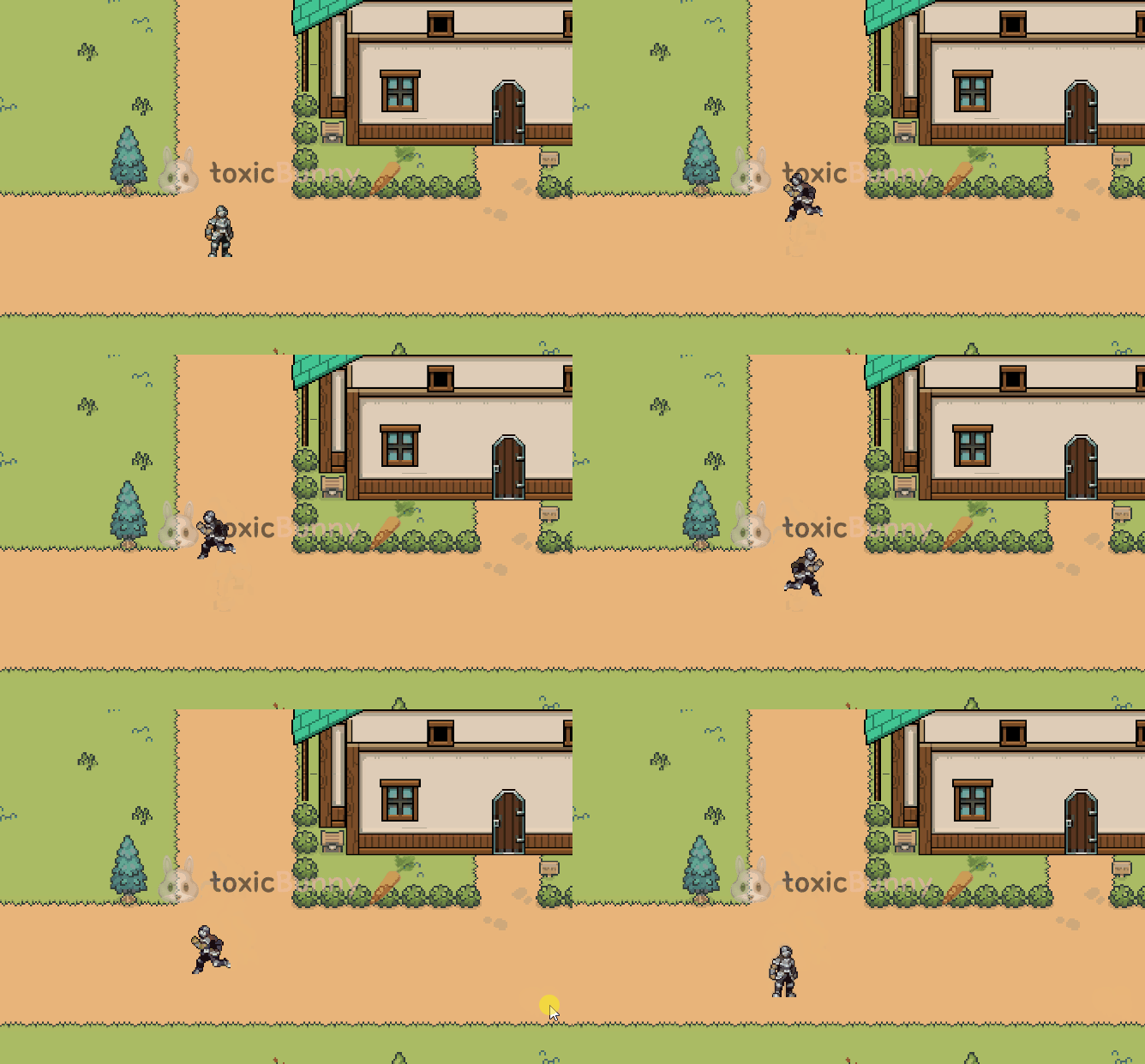
코드까지 수정해 주면 위/아래 이동이 원활하게 움직이는 것을 확인할 수 있다.
2. 카메라
지금 상태에서 플레이어가 맵의 끝쪽으로 이동하면 카메라에서 벗어나 확인이 어렵다.
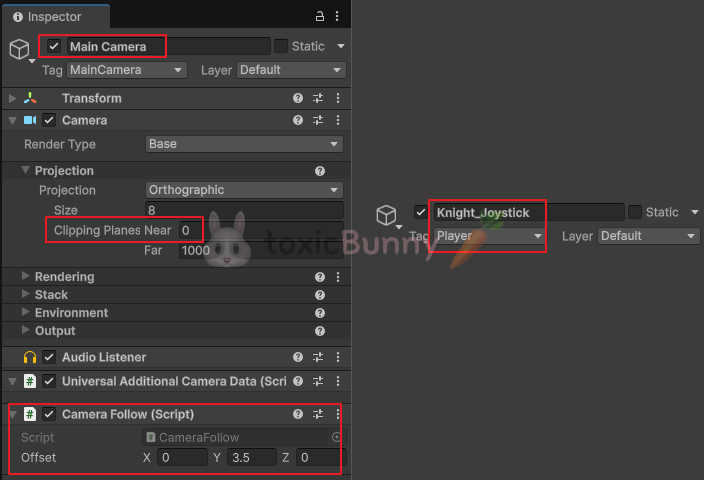
카메라가 플레이어를 따라가도록 스크립트를 만들어줄 것이다.
🥕 Script 생성 (CameraFollow)
2.1. 타겟 설정
우선 태그를 사용해서 플레이어(타겟)을 찾고 그 타겟을 따라가도록 설정해 줄 것이다.
Find 메서드를 사용해 줄 것인데 업데이트문 같이 반복적으로 찾는 경우에는 성능 쪽에서 문제가 될 수 있지만 Start 같이 한 번만 실행되는 메서드에서 구현해 주면 큰 문제가 없다.
using UnityEngine;

public class CameraFollow : MonoBehaviour
{
    private Transform target;
    [SerializeField] private Vector3 offset;
    [SerializeField] private float smoothSpeed = 5f;

    void Start()
    {
        // Start 메서드 처럼 한번만 실행되는 곳에서 find를 사용해도 큰 문제가 없다. -> 업데이트문에서 쓰면 욕먹음
        target = GameObject.FindGameObjectWithTag("Player").transform;
    }

    void LateUpdate()
    {
        Vector3 destination = target.position + offset;
        Vector3 smoothPos = Vector3.Lerp(transform.position, destination, smoothSpeed * Time.deltaTime);

        transform.position = smoothPos;
    }
}
2.2. 외곽 설정
카메라가 플레이어를 따라다니다 보니 맵 밖까지 보이는 현상이 있는데 이 부분을 수정해 줄 것이다.
public class CameraFollow : MonoBehaviour
{
    [SerializeField] private Vector2 minBound;
    [SerializeField] private Vector2 maxBound;

    void LateUpdate()
    {
        smoothPos.x = Mathf.Clamp(smoothPos.x, minBound.x, maxBound.x);
        smoothPos.y = Mathf.Clamp(smoothPos.y, minBound.y, maxBound.y);
    }
}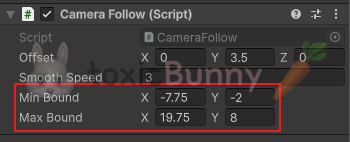
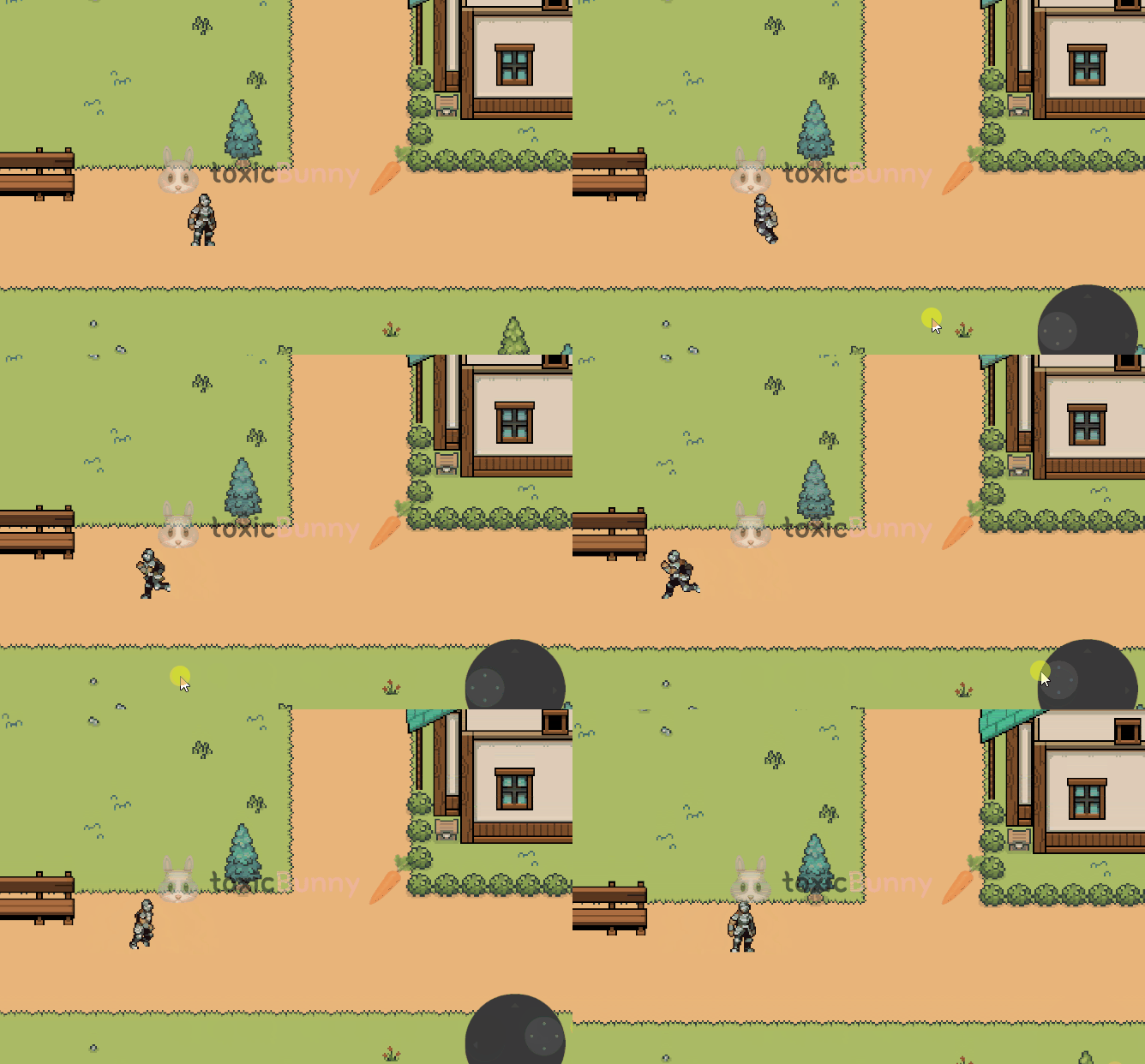
위 코드를 추가해 준 후 맵 끝쪽의 좌표값을 확인해서 최대/최소값을 넣어주면 된다.
2. 상호작용 이벤트
NPC 같이 플레이어와의 몇 가지 상호작용 이벤트를 만들어주려고 한다.
🥕 Script 생성 (InteractionEvent)
1. 팻말

우선 상호작용이 발생할 수 있도록 팻말이 있는 곳에 콜라이더를 만들어주고 is Trigger를 체크해 준다.
using UnityEngine;

public class InteractionEvent : MonoBehaviour
{
    public enum InteractionType { SIGN, DOOR, NPC}
    public InteractionType type;

    public GameObject popUp;

    private void OnTriggerEnter2D(Collider2D other)
    {
        if (other.CompareTag("Player"))
        {
            Interaction(other.transform);
        }
    }
    private void OnTriggerExit2D(Collider2D other)
    {
        if (other.CompareTag("Player"))
        {
            popUp.SetActive(false);
        }
    }

    void Interaction(Transform player)
    {
        switch (type)
        {
            case InteractionType.SIGN:
                popUp.SetActive(true);
                break;

            case InteractionType.DOOR:
                break;

            case InteractionType.NPC:
                break;
        }
    }
}
우선 팻말 외에도 여러 상호작용 이벤트를 만들어줄 것이기 때문에 enum으로 타입을 만들어주고,
switch 문을 통해서 타입별로 이벤트가 발생하도록 코드를 구현해 주었다.

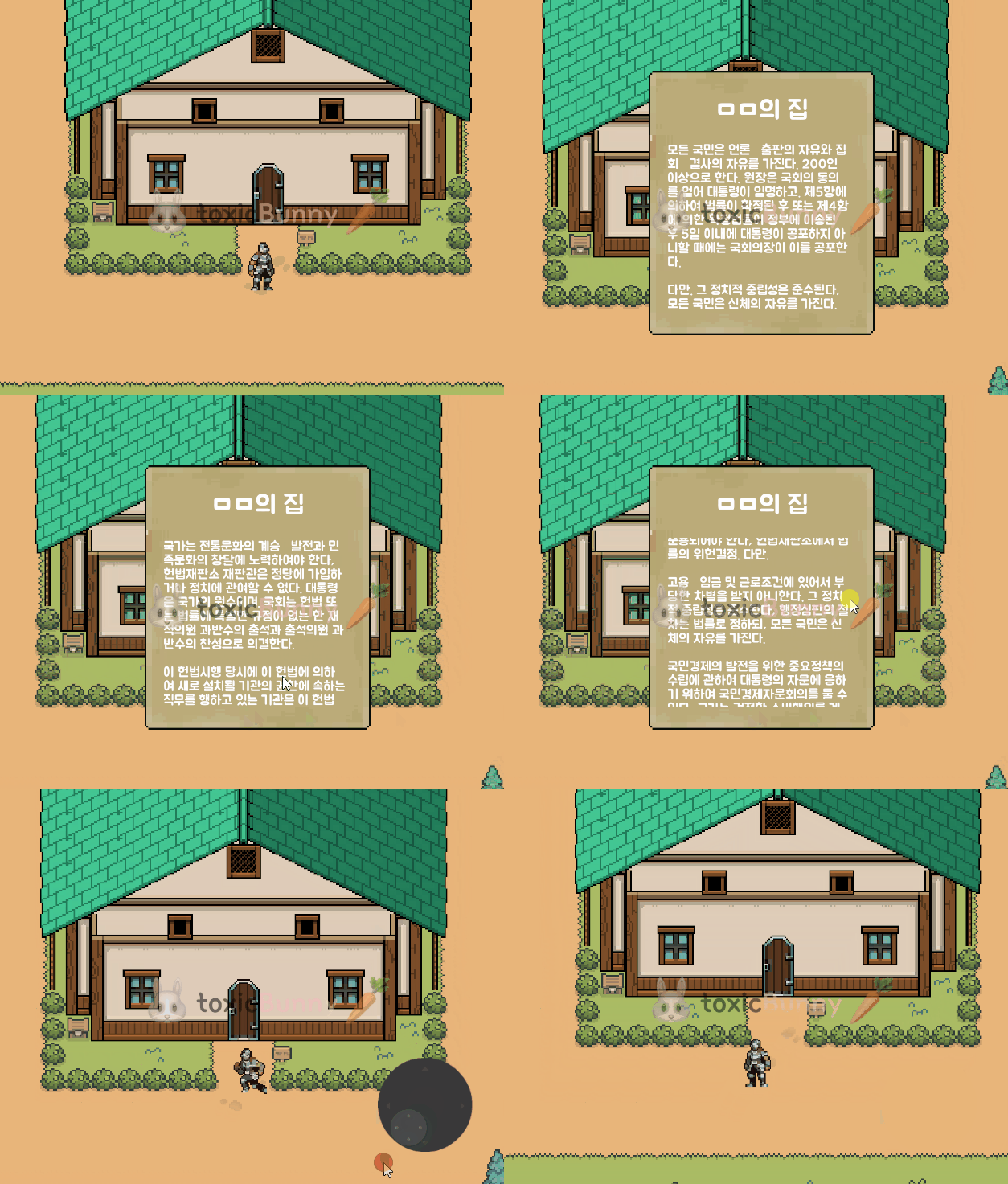
singPopup UI를 생성해 주고 팝업의 배경화면을 이미지로 갖고 올 때 슬라이싱 기능을 활용해 주면 해상도에 따라 이미지가 변경되는 것을 방지할 수 있다.
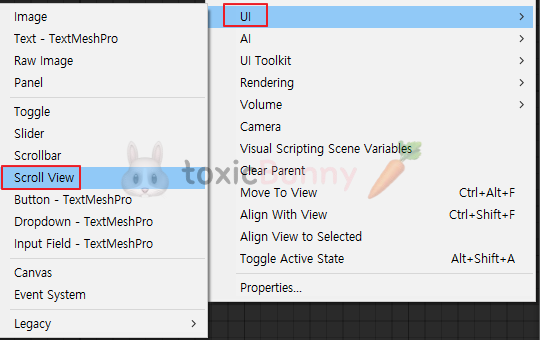
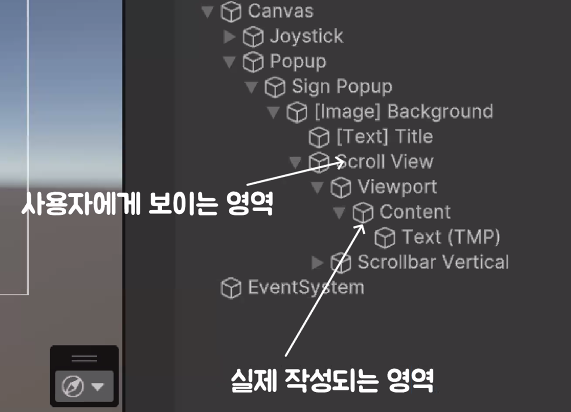
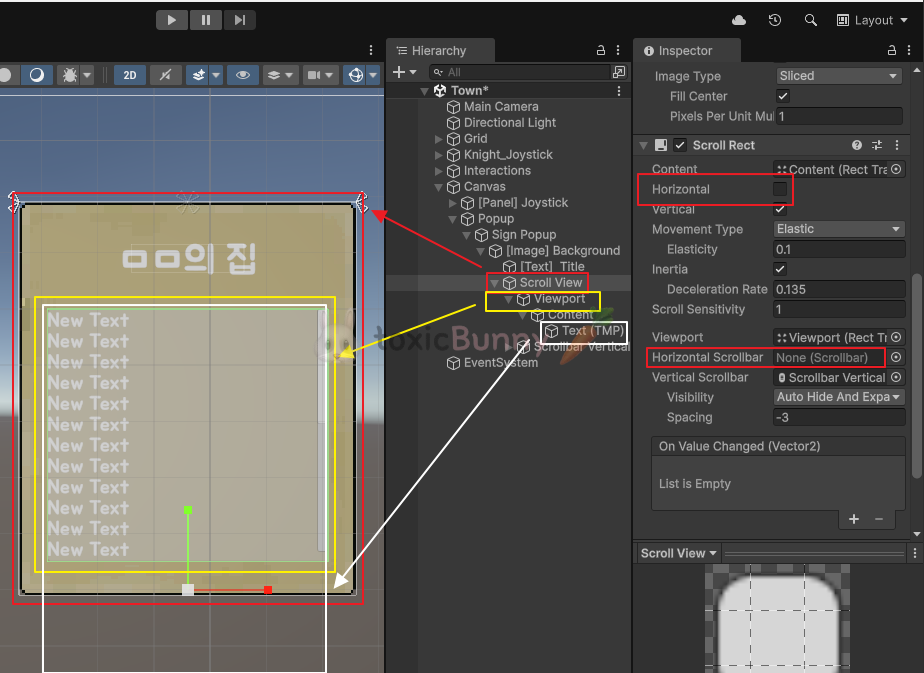
팻말의 글을 길게 작성할 경우 잘리는 현상이 있을 수 있으니 Scroll View로 본문 부분을 만들어주었다.
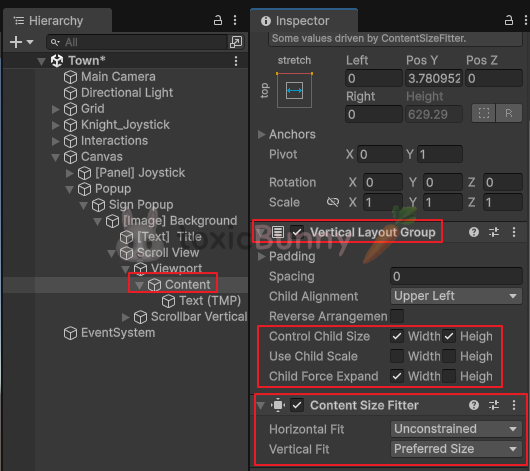
▶ 자동으로 Content 크기 조절하기
- Vertical Layout Group : 자식이 자신의 크기보다 작을 경우라도 Content의 크기를 꽉 채우게 함
- Child Force Expand → Width: 체크, Height: 체크
- Control Child Size → Width: 체크
- Content Size Fitter : 자식들의 크기에 맞게 Content의 크기를 자동으로 늘려줌
- Vertical Fit → Preferred Size
- Horizontal Fit → Unconstrained
▶ 글 더미 사이트 추천
웹 개발할 때 더미 글이 많이 필요했었어서 자주 사용했던 사이트인데
이게 여기서도 쓰일 줄이야 ㅇ_ㅇ..
Professional lorem ipsum generator for typographers
Generator for randomized typographic filler text Sorry, this generator needs JavaScript enabled Sample text Overview Lorem Ipsum: Quality typographic filler text for webmastersThe dummy copy at this site is made from a dictionary of 500 words from Cic
generator.lorem-ipsum.info
2. NPC
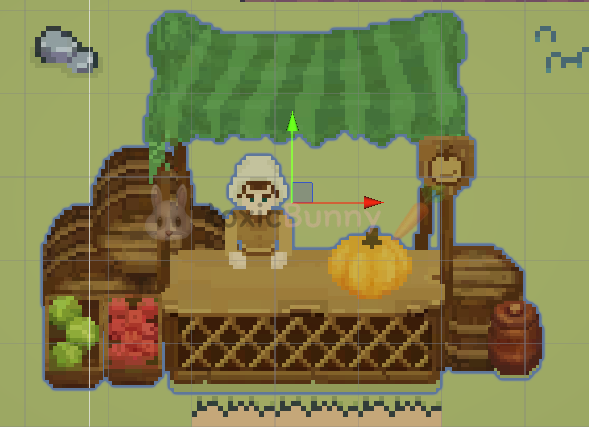
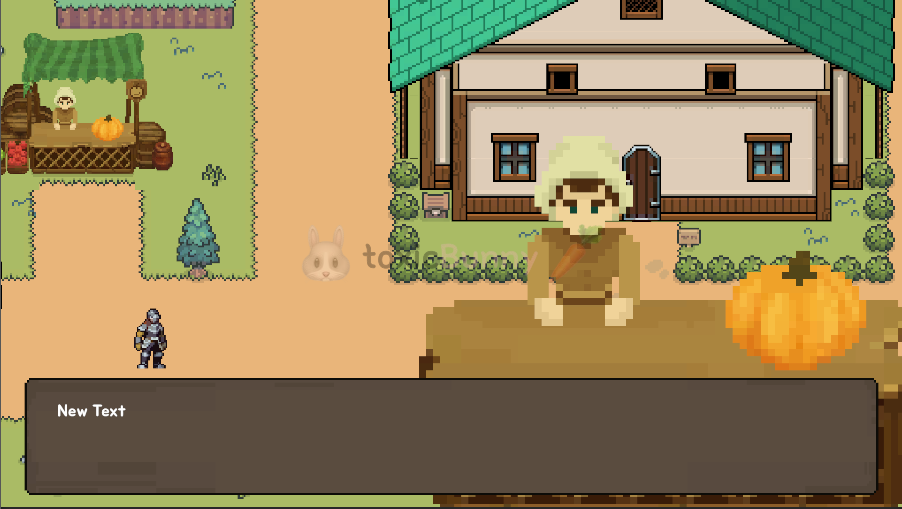

NPC 오브젝트를 맵 어딘가에 적당히 배치해 두고
트리거가 엔터 되면 UI가 나타나도록 UI도 만들어 주었다.
using System.Collections;
using TMPro;
using UnityEngine;

public class TypingText : MonoBehaviour
{
    [SerializeField] private TextMeshProUGUI textUI;
    private string currText;
    [SerializeField] private float typingSpeed = 0.1f;

    void Awake()
    {
        // 유니티에 적은 글 저장
        currText = textUI.text;
    }

    void OnEnable()
    {
        textUI.text = string.Empty;

        StartCoroutine(TypingRoutine());
    }

    // 글자가 한글자씩 나열되도록
    IEnumerator TypingRoutine()
    {
        int textCount = currText.Length;
        for (int i = 0; i < textCount; i++)
        {
            textUI.text += currText[i];
            yield return new WaitForSeconds(typingSpeed);
        }
    }
}
그리고 말풍선에 글자가 한 글자씩 나열되도록 스크립트를 하나 만들어주었다.
void Interaction(Transform player)
{
    switch (type)
    {
        case InteractionType.SIGN:
            popUp.SetActive(true);
            break;

        case InteractionType.DOOR:
            break;

        case InteractionType.NPC:
            popUp.SetActive(true);
            break;
    }
}
잊지 말고 이벤트 스크립트에도 NPC UI가 켜지도록 SetAtcive를 설정해 준다.
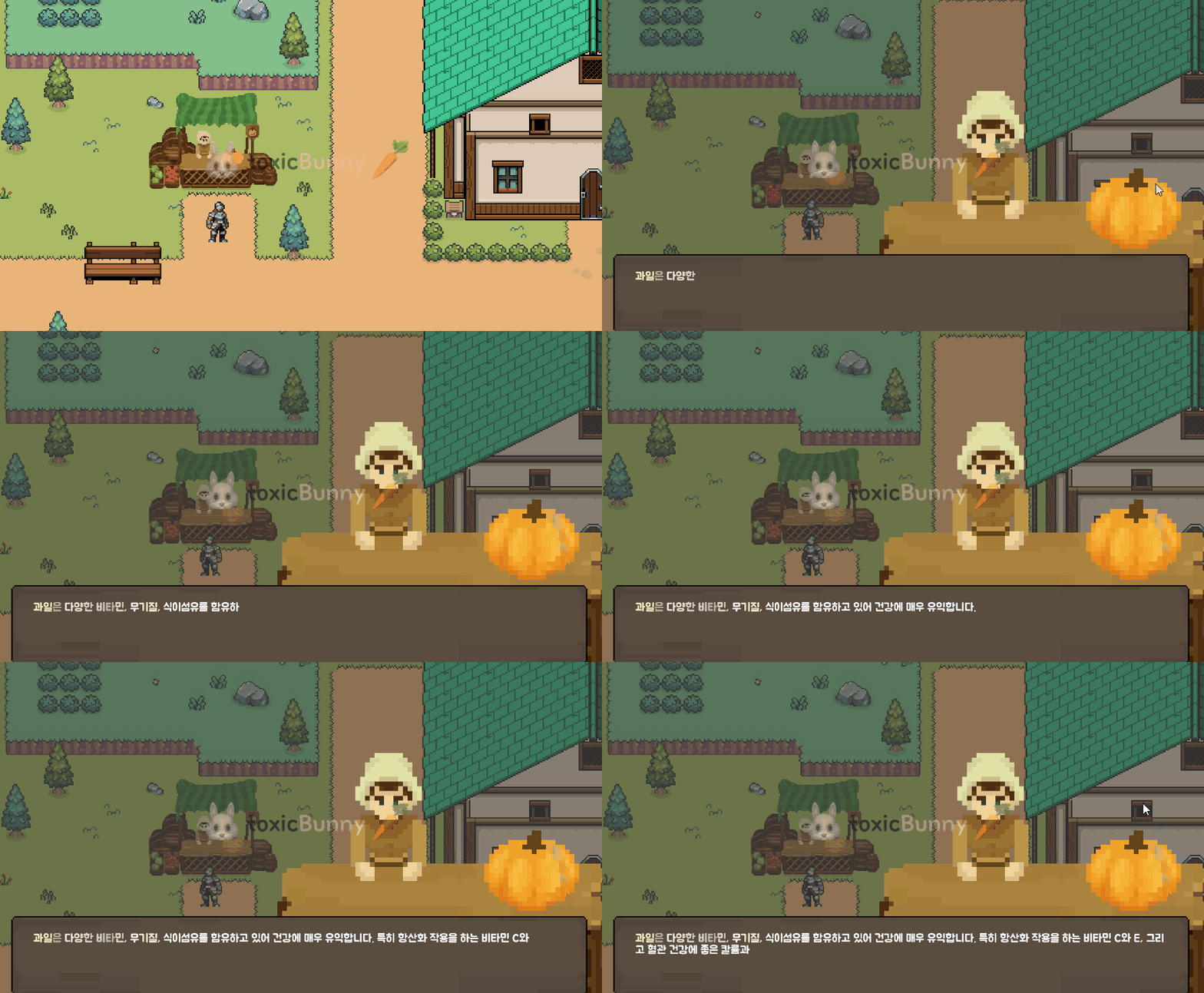
이때 배경이 어두워지는 이미지를 넣어서 트리거 안으로 들어가면 조이스틱이 작동되지 않는데 이 부분은 Raycast Target을 체크 해제 해주면 된다!
3. House
플레이어가 문 쪽으로 다가가면 집 내부로 이동하는 걸 구현하려고 한다.
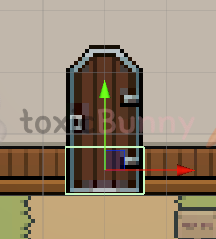
우선 문에 콜라이더를 만들어 두고
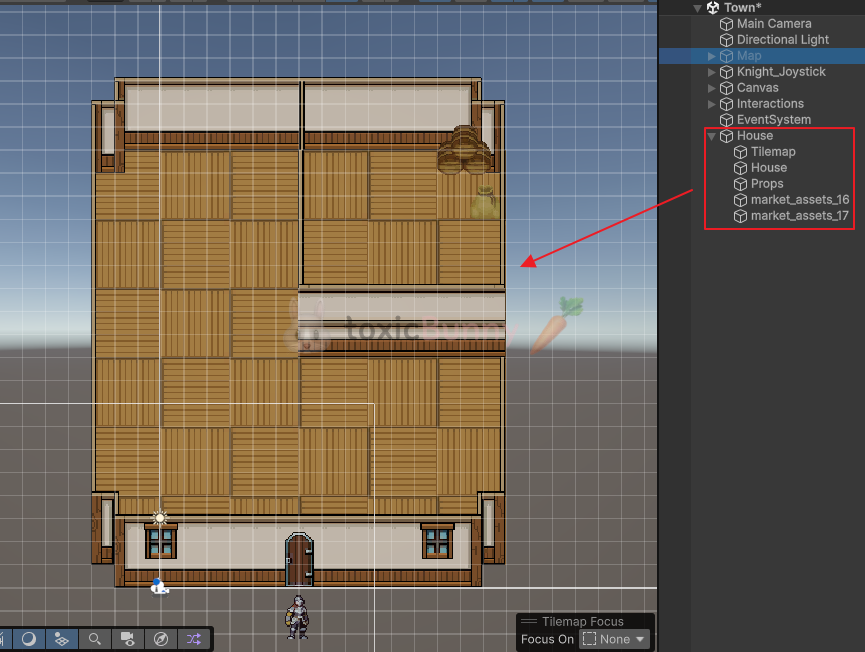
집 내부용 타일 맵을 새로 만들어준다.
public class InteractionEvent : MonoBehaviour
{
    public GameObject map;
    public GameObject house;

    public Vector3 inDoorPos;
    public Vector3 outDoorPos;

    public bool isHouse;

    void Interaction(Transform player)
    {
        switch (type)
        {
            case InteractionType.DOOR:
                StartCoroutine(DoorRoutine(player));
                break;
        }
    }

    IEnumerator DoorRoutine(Transform player)
    {
        yield return StartCoroutine(fade.Fade(3f, Color.black, true));

        map.SetActive(isHouse);
        house.SetActive(!isHouse);

        var pos = isHouse ? outDoorPos : inDoorPos;
        player.transform.position = pos;

        isHouse = !isHouse;

        yield return new WaitForSeconds(1f);
        yield return StartCoroutine(fade.Fade(3f, Color.black, false));
    }
}

// FadeRoutine 스크립트 복사 후 새로 만든 스크립트
public class PlatformFade : MonoBehaviour
{
    public Image fadePanel;

    public void OnFade(float fadeTime, Color color, bool isFadeStart)
    {
        StartCoroutine(Fade(fadeTime, color, isFadeStart));
    }

    public IEnumerator Fade(float fadeTime, Color color, bool isFadeStart)
    {
        float timer = 0f;
        float percent = 0f;
        while (percent < 1f)
        {
            timer += Time.deltaTime;
            percent = timer / fadeTime;

            float value = isFadeStart ? percent : 1 - percent;

            fadePanel.color = new Color(color.r, color.g, color.b, value);
            yield return null;
        }
    }
}
예전에 Fade 코루틴을 만들어둔 스크립트를 활용해 주려고 PlatFormFade로 새로 스크립트를 만들어서 복붙 해서 약간만 수정해 주었다. 그래서 플레이어가 문에 닿을 때 Fade 코루틴이 발동되면서 집 내부/외부를 활성화/비활성화 되도록 설정해 주었다.
inDoorPos와 outDoorPos는 플레이어가 문을 통해 집 안팎으로 이동할 때 도착 위치를 지정하기 위해 사용되었다.
현재 집 안에 있는지 여부(isHouse)에 따라 들어갈 위치와 나올 위치를 구분해서 씬 전환 없이 위치만 바꿔 Fade가 중복으로 작동되는 것을 방지해 주었다.
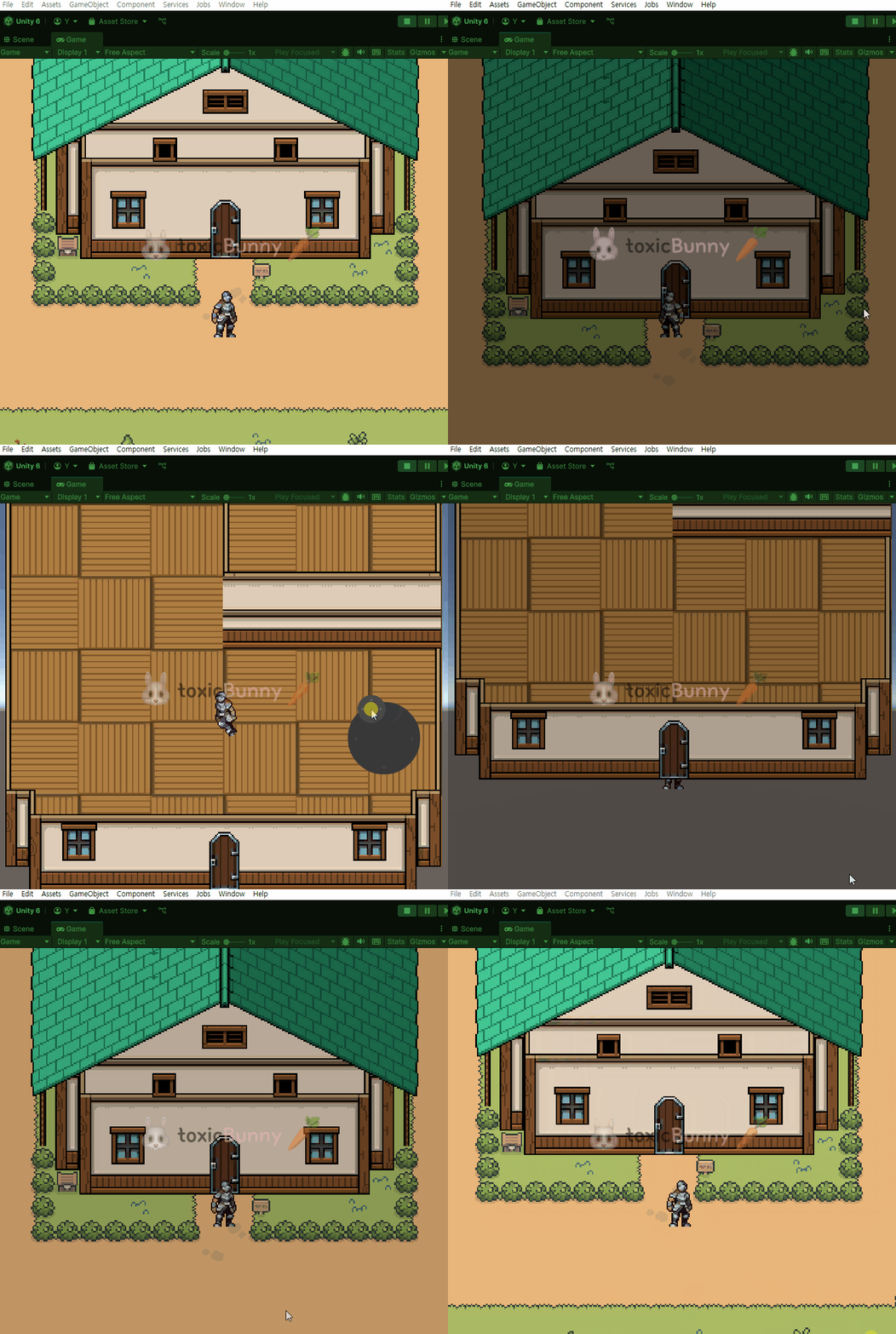
흐아.. 어제까지만 해도 잘만 되었던 타일 팔레트가 오늘 갑자기 먹통이었다..
실은 뭘 잘못했는지 아직도 찾지 못햇음..
결국 새로 팔레트를 만들어줬고.. 기존에 만든 팔레트는 당연히 삭제하면서 분홍색으로 다 깨졌었음
엄청난 노가다를 다시 해내고.. 진도도 얼레벌레 잘 따라갔ㄷㅏ.. 고된 하루였다!!
'Unity > 멋쟁이사자처럼 부트캠프' 카테고리의 다른 글
| [멋쟁이사자처럼부트캠프] 유니티 게임 개발 5기(31일차) - 2D 플랫포머 게임 (6) (4) | 2025.06.30 |
|---|---|
| [멋쟁이사자처럼부트캠프] 유니티 게임 개발 5기(30일차) - 2D 플랫포머 게임 (5) (3) | 2025.06.27 |
| [멋쟁이사자처럼부트캠프] 유니티 게임 개발 5기(28일차) - 2D 플랫포머 게임(3) (4) | 2025.06.25 |
| [멋쟁이사자처럼부트캠프] 유니티 게임 개발 5기(27일차) - 2D 플랫포머 게임(2) 조이스틱 & 버튼 UI 구현 (2) | 2025.06.24 |
| [멋쟁이사자처럼부트캠프] 유니티 게임 개발 5기(26일차) - 게임수학(2) 및 2D플랫포머 게임(1) (1) | 2025.06.23 |


