[멋쟁이사자처럼부트캠프] 유니티 게임 개발 5기(26일차) - 게임수학(2) 및 2D플랫포머 게임(1)
by 독기품은토끼2025. 6. 23.
✅ 오늘의 학습 목표 1. 게임 수학 - Vector의 내적과 외적에 대해 알아보기 - 선형 이동에 대해 알아보기 2. 2D 플랫포머 게임 구현
1. 게임 수학
1. 벡터의 내적과 외적
1.1. 내적
두 벡터의 관계 → 각도를 계산할 수 있다
using UnityEngine;

public class MathDot : MonoBehaviour
{
    public Vector3 vecA = new Vector3(1, 0, 0); // Vector Right
    public Vector3 vecB = new Vector3(0, 1, 0); // Vector Up

    void Start()
    {
        // Cos(theta) 값
        float result = Vector3.Dot(vecA, vecB);

        // 각도 값
        float result2 = Vector3.Angle(vecA, vecB);

        Debug.Log($"벡터의 내적(Cos) : {result}");
        Debug.Log($"벡터의 내적(각도) : {result2}");
    }
}
Vector3.Dot(A, B)는 두 벡터 A, B 사이의 코사인값을 반환하고 값은 -1에서 1 사이의 범위를 가진다.
게임에서는 캐릭터의 시야 범위를 판단할 때 내적을 자주 사용하는데, 값이 1에 가까울수록 정면, 0이면 측면, -1이면 반대 방향을 가리킨다.
1.2. 외적
두 벡터의 수직 벡터
방향 계산, 회전 방향 확인, 회전축을 만들 때 사용한다.
using UnityEngine;

public class MathCross : MonoBehaviour
{
    public Vector3 vecA = new Vector3(1, 0, 0);
    public Vector3 vecB = new Vector3(0, 1, 0);

    void Start()
    {
        Vector3 result = Vector3.Cross(vecA, vecB);
        Debug.Log($"벡터의 외적 : {result}");
    }
}
2. 선형 이동
두 값 사이를 선형적으로 보간
NPC나 UI 요소, 카메라 등 다양한 오브젝트를 이동시킬 때 주로 사용한다.
using UnityEngine;

public class MathLerp : MonoBehaviour
{
    public Vector3 targetPos;
    public float smoothValue;

    void Update()
    {
        // (현재위치, 목표위치, 이동 비율)
        transform.position = Vector3.Lerp(transform.position, targetPos, smoothValue);
    }
}
Vector3.Lerp(start, end, t)는 t값(0~1)에 따라 start에서 end로 부드럽게 이동하는 값을 반환한다.
현재 남아있는 거리를 기준으로 계산하기 때문에 거리를 나아갈수록 속도가 줄어드는 듯한 느낌을 받게 된다.
using UnityEngine;

public class MathLerp : MonoBehaviour
{
    public Vector3 targetPos;

    private Vector3 startPos;

    // 타이머, 퍼센트, 원하는 이동 시간
    private float timer, percent;
    public float lerpTime;

    void Start()
    {
        startPos = transform.position; // 시작 지점 저장
    }

    void Update()
    {
        timer += Time.deltaTime;
        percent = timer / lerpTime;

        // (현재위치, 목표위치, 이동 비율)
        transform.position = Vector3.Lerp(startPos, targetPos, percent);
    }
}
일정한 속도로 움직이도록 하기 위해서 시작 지점을 변수로 선언해 주었다.
2.1. Tile Manager
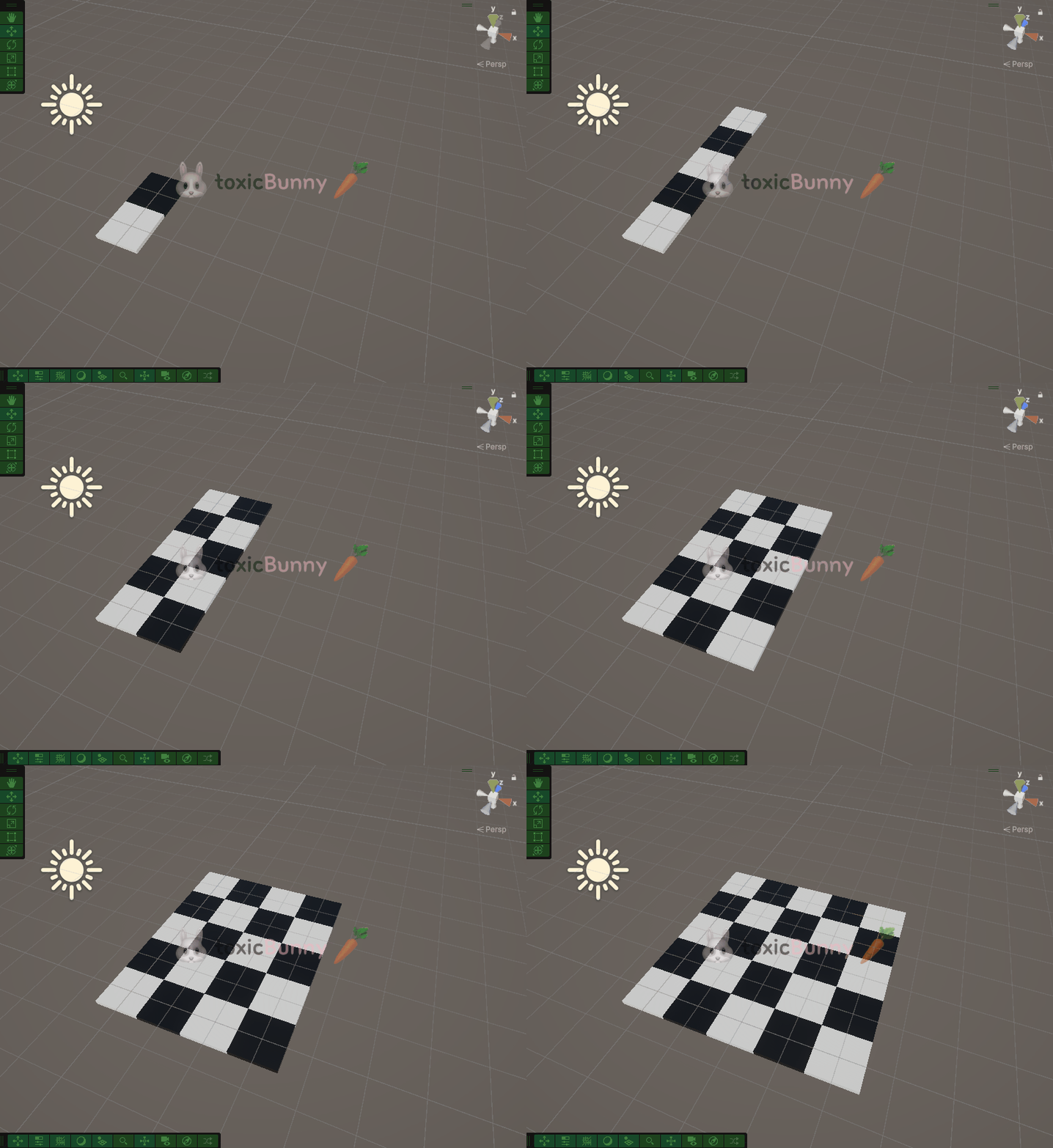
선형 이동 개념을 조금 더 시각적으로 알아보기 쉽게 스크립트를 하나 생성하였다.
using System.Collections;
using UnityEngine;

public class SetTile : MonoBehaviour
{
    public GameObject tilePrefab;
    public int rows = 5, cols = 5;

    IEnumerator Start()
    {
        for (int i = 0; i < rows; i++)
        {
            for (int j = 0; j < cols; j++)
            {
                var pos = new Vector3(i, 0, j);

                GameObject tile = Instantiate(tilePrefab, pos, Quaternion.identity);
                Renderer renderer = tile.GetComponent<Renderer>();

                if ((i + j) % 2 == 0) // 짝수
                    renderer.material.color = Color.white;
                else // 홀수
                    renderer.material.color = Color.black;

                yield return new WaitForSeconds(0.1f);
            }
        }
    }
}
일정한 간격으로 타일 프리팹이 깔아질 수 있도록 rows랑 cols 값으로 행/열 개수를 설정하고, (i + j) % 2 조건을 줘서 체스판처럼 흑백 머테리얼을 적용하였다.
2.2. 응용
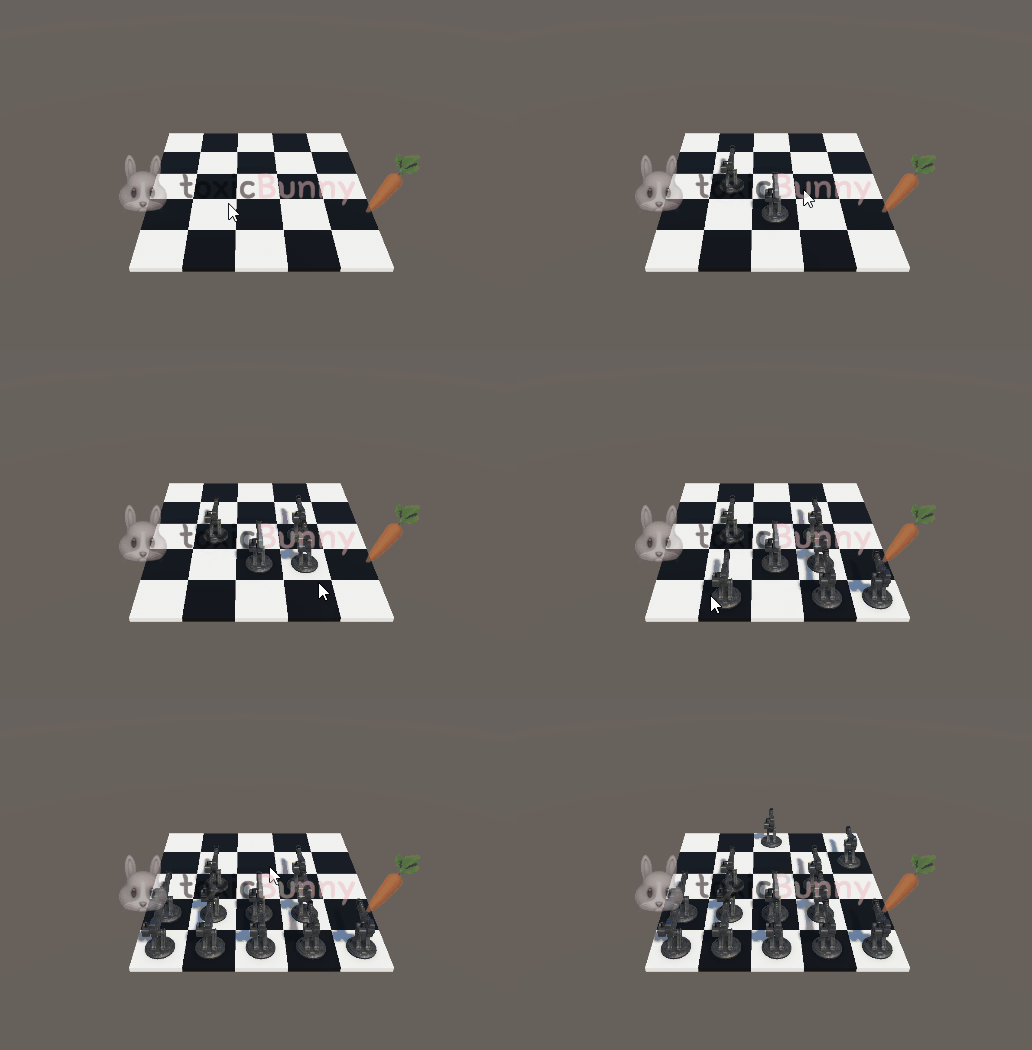
이번에는 타일 위에 마우스를 클릭하면 터렛(타워)이 설치되도록 구현해 보자.
using UnityEngine;

public class Tile : MonoBehaviour
{
    public GameObject[] turretPrefab;

    void OnMouseDown()
    {
        Instantiate(turretPrefab[0], transform.position, Quaternion.identity);
    }
}
타일의 프리팹에 Tile 스크립트와 터렛 프리팹을 넣어주면 정상적으로 작동되는 것을 확인할 수 있다.
2.3. UI 활용
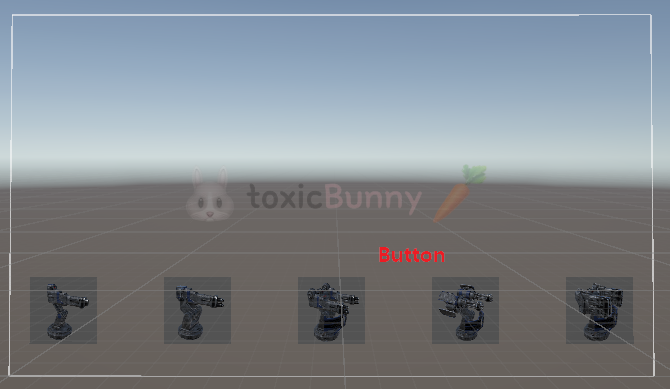
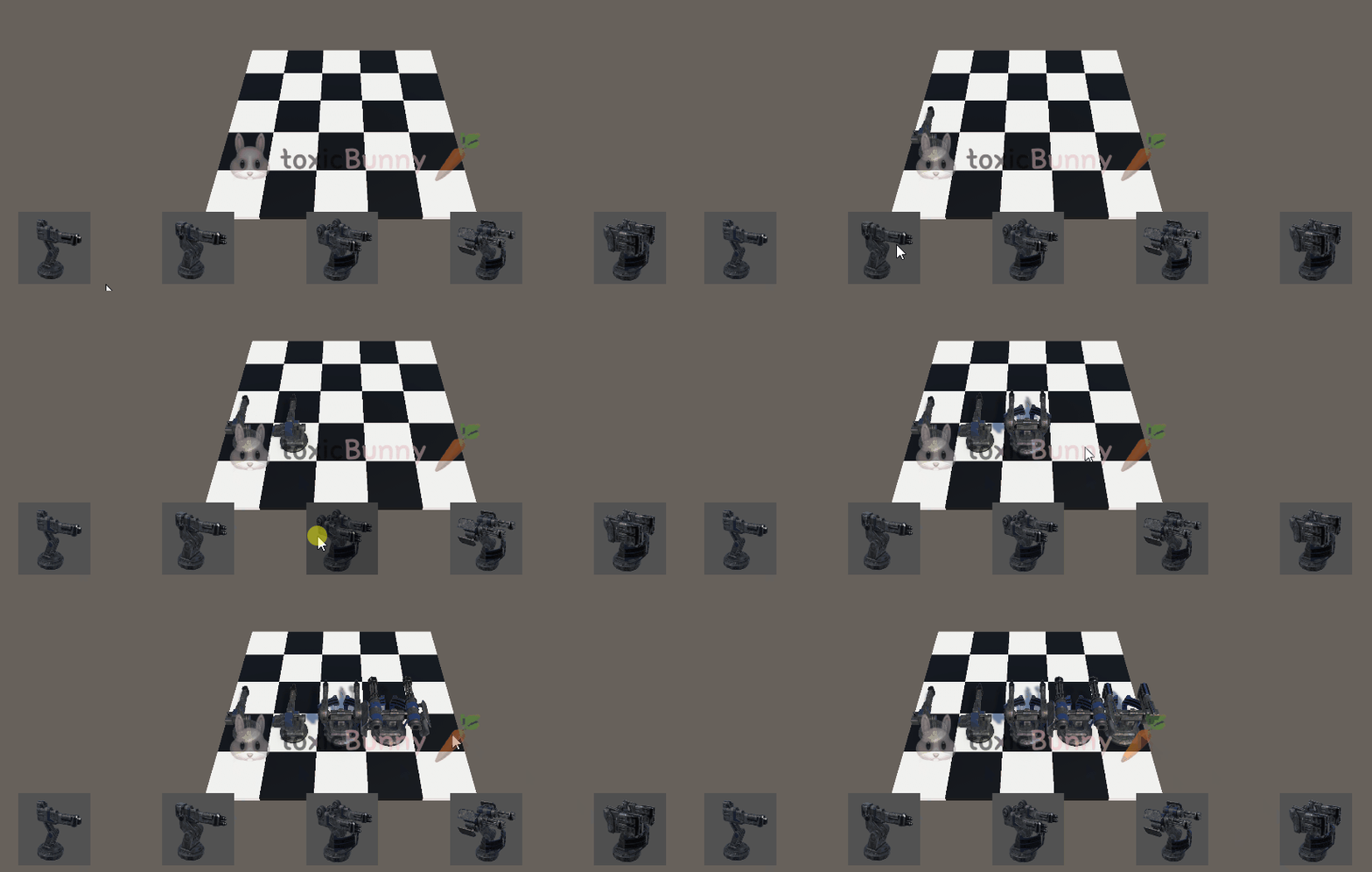
UI 버튼을 통해 터렛을 선택하고 선택한 터렛을 타일에 설치되도록 구현해 보자
우선 터렛을 선택할 수 있도록 UI 버튼으로 캔버스 적당한 위치에 배치해 주었다.
using System.Collections;
using UnityEngine;
using UnityEngine.UI;

public class SetTile : MonoBehaviour
{
    public GameObject tilePrefab;
    public int rows = 5, cols = 5;

    public Button[] buttons;
    public static int turretIndex;

    void Awake()
    {
        //buttons[0].onClick.AddListener(() => ChangeIndex(0));
        //buttons[1].onClick.AddListener(() => ChangeIndex(1));
        //buttons[2].onClick.AddListener(() => ChangeIndex(2));
        //buttons[3].onClick.AddListener(() => ChangeIndex(3));
        //buttons[4].onClick.AddListener(() => ChangeIndex(4));

        // 클로져 이슈
        for (int i = 0; i < 5; i++)
        {
            int j = i; // 지역변수에 담아서 전달해주면 됨
            buttons[i].onClick.AddListener(() => ChangeIndex(j));
        }
    }

    IEnumerator Start()
    {
        for (int i = 0; i < rows; i++)
        {
            for (int j = 0; j < cols; j++)
            {
                var pos = new Vector3(i, 0, j);

                GameObject tile = Instantiate(tilePrefab, pos, Quaternion.identity);
                Renderer renderer = tile.GetComponent<Renderer>();

                if ((i + j) % 2 == 0) // 짝수
                    renderer.material.color = Color.white;
                else // 홀수
                    renderer.material.color = Color.black;

                yield return new WaitForSeconds(0.1f);
            }
        }
    }

    void ChangeIndex(int index)
    {
        turretIndex = index;
    }
}
🚨 클로저 이슈 (Closure Issue)
for (int i = 0; i < 5; i++)
{
    buttons[i].onClick.AddListener(() => ChangeIndex(i));
}
Awake 함수 내에서 반복문을 처음에는 위와 같이 작성했었다.
이 명령문을 실행하면 모든 버튼이 마지막 인덱스(4)만 전달하게 된다.
람다식 내에서 참조형 변수(i)를 그대로 사용하면, 반복문이 끝난 뒤 i가 5가 되어버리므로 모든 버튼에 같은 값이 들어간다.
그래서 반복문 내부에서 i값을 복사한 지역변수를 생성하여 전달해야 한다.
using UnityEngine;

public class Tile : MonoBehaviour
{
    public GameObject[] turretPrefab;

    void OnMouseDown()
    {
        Instantiate(turretPrefab[SetTile.turretIndex], transform.position, Quaternion.identity);
    }
}
이제 터렛 설치가 잘 되도록 선택한 인덱스를 바탕으로 터렛이 생성되게 Tile 스크립트를 수정해 주면 된다.
2. 플랫포머 게임
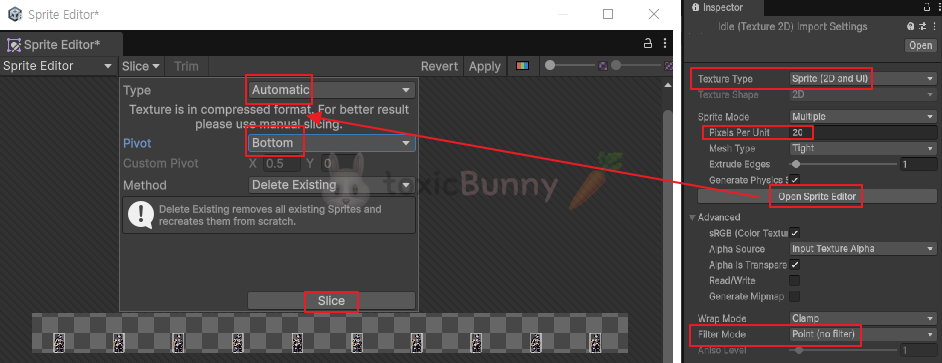
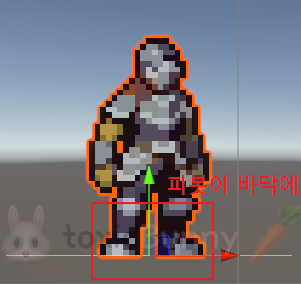
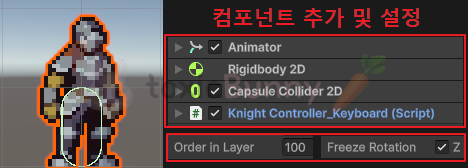
🥕 예행 작업 1. Scene 생성 (Platformer) 2. Script 생성 (KnightController_Keyboard) 3. Assets 다운로드