Carrot
본문 바로가기
Unity/멋쟁이사자처럼 부트캠프

[멋쟁이사자처럼부트캠프] 유니티 게임 개발 5기(91일차) - [3D 게임] 플레이어 상태 머신 설계

by 독기품은토끼 2025. 9. 29.
✅ 오늘의 학습 목표
1. 캐릭터 생성

1. 3D 게임 : 플레이어 상태 머신 설계

🥕 예행 작업
1. Assets 다운로드
 

3D Game Kit - Character Pack | 3D | Unity Asset Store

Elevate your workflow with 3D Game Kit - Character Pack asset from Unity Technologies. Find this & other great 3D options on the Unity Asset Store.

assetstore.unity.com


3D Game Kit - Environment Pack | 3D 식물 | Unity Asset Store

Elevate your workflow with the 3D Game Kit - Environment Pack asset from Unity Technologies. Find this & other 식물 options on the Unity Asset Store.

assetstore.unity.com


1. 상태 머신 틀

public enum EPlayerState
{
    None, Idle, Move, Jump, Attack, Hit, Dead
}


플레이어가 행할 수 있는 상태를 enum으로 먼저 정의해주었다.


public interface IPlayerState
{
    void Enter();
    void Update();
    void Exit();
}


모든 상태 클래스가 반드시 구현해야하는 공통 규칙을 정의해주었다.

  • Enter() : 상태 진입 시 실행할 로직 (예: Idle 애니메이션 켜기)
  • Update() : 상태 유지 중 매 프레임 실행할 로직 (예: 이동 중 키 입력 처리)
  • Exit() : 상태에서 나올 때 실행할 로직 (예: 애니메이션 리셋)


public class PlayerState
{
    protected PlayerController _playerController;
    protected Animator _animator;

    public PlayerState(PlayerController playerController, Animator animator)
    {
        _playerController = playerController;
        _animator = animator;
    }
}


모든 상태 클래스가 공통으로 사용할 필드(플레이어, 애니메이터)를 제공한다.

이렇게 해주면 상태별로 공통 코드를 줄이고 중복을 방지할 수 있다.


2. Idle 상태 / 플레이어 컨트롤러

public class PlayerStateIdle : PlayerState, IPlayerState
{
    public PlayerStateIdle(PlayerController playerController, Animator animator)
        : base(playerController, animator) { }

    public void Enter() { /* Idle 애니메이션 재생 */ }
    public void Update() { /* 가만히 있기 */ }
    public void Exit() { /* 상태 빠져나갈 때 처리 */ }
}


PlayerState와 IPlayerState를 상속받아

캐릭터와 애니메이터를 불러와주고, 필수로 구현해야할 인터페이스를 넣어준다.

지금은 빈 메서드이지만 여기에 animator.SetTrigger("Idle") 같은 로직을 넣을 것으로 예상된다.


public class PlayerController : MonoBehaviour
{
    private Animator _animator;
    private PlayerInput _playerInput;
    public EPlayerState State { get; private set; }
    private Dictionary<EPlayerState, IPlayerState> _states;

    private void Awake()
    {
        _animator = GetComponent<Animator>();
        _playerInput = GetComponent<PlayerInput>();

        var playerStateIdle = new PlayerStateIdle(this, _animator);
        _states = new Dictionary<EPlayerState, IPlayerState>
        {
            { EPlayerState.Idle, playerStateIdle },
        };

        SetState(EPlayerState.Idle);
    }

    private void Update()
    {
        if (State != EPlayerState.None)
        {
            _states[State].Update();
        }
    }

    public void SetState(EPlayerState state)
    {
        if (State == state) return;
        if (State != EPlayerState.None) _states[State].Exit();
        State = state;
        if (State != EPlayerState.None) _states[State].Enter();
    }
}


Animator와 PlayerInput 컴포넌트를 자동으로 가져온다

상태 전환은 SetState()로만 하도록 해서 깨끗한 흐름을 보장한다.


public class EllenPlayerController : PlayerController { }


Ellen 캐릭터 전용 클래스이다.

이렇게 하면 한 캐릭터에만 특별한 기능을 넣을 수 있다.


2. 커스텀 인스펙터

유니티의 Custom Editor 기능을 활용해서

특정 컴포넌트가 Inspector 창에 어떻게 표시될지를 커스터마이징 하는 스크립트를 작성해주려고 한다.


1. 기본 구조

[CustomEditor(typeof(EllenPlayerController))]
public class PlayerControllerEditor : Editor


기존에 늘 상속받던 MonoBehaviour가 아니라 Editor를 상속받아 Unity 에디터 전용 스크립트를 생성해 준다.

[CustomEditor(typeof(EllenPlayerController))] 해당 명령어로 인해

해당 클래스는 Inspector에서 EllenPlayerController 컴포넌트를 볼 때에만 작동한다.


즉, 일반적으로 Unity에서 public이나 [SerializeField]로 변수만 Inspector에 보이지만

이 코드를 사용하면 인스펙터 UI를 원하는대로 꾸밀 수 있다.


2. OnInspectorGUI (Inspector 창 꾸미기)

public override void OnInspectorGUI()
{
    EllenPlayerController playerController = (EllenPlayerController)target;

    EditorGUILayout.Space();
    EditorGUILayout.LabelField("Ellen Player", EditorStyles.boldLabel);
    EditorGUILayout.BeginVertical(EditorStyles.helpBox);


해당 메서드는 인스펙터창이 그려질 때마다 호출되는 함수이다.

target은 지금 에디터에서 보고 있는 EllenPlayerController 인스턴스이고, 캐스팅을 통해 playerController 변수에 저장한다.

  • EditorGUILayout.Space() : 줄 간격 띄우기
  • LabelField("Ellen Player", ...) : 굵은 글씨 제목 추가
  • BeginVertical(EditorStyles.helpBox) : 네모 박스 UI 시작


3. 플레이어 상태에 따른 배경색 변경

switch (playerController.State)
{
    case Constants.EPlayerState.Idle:
        GUI.backgroundColor = new Color(0, 1, 0, 1);
        break;
    case Constants.EPlayerState.Move:
        GUI.backgroundColor = new Color(1, 1, 0, 1);
        break;
    case Constants.EPlayerState.Jump:
        GUI.backgroundColor = new Color(0, 1, 1, 1);
        break;
}


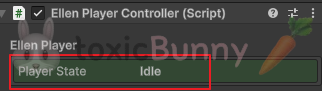
playerController.State 값에 따라 인스펙터 배경이 달라지도록 설정해 주었다.

  • Idle → 초록
  • Move → 노랑
  • Jump → 하늘색


4. helpBox

EditorGUILayout.BeginVertical(EditorStyles.helpBox);
EditorGUILayout.LabelField("Player State", playerController.State.ToString(), EditorStyles.boldLabel);
EditorGUILayout.EndVertical();

EditorGUILayout.EndVertical();


위에서 만들어준 helpBox 안에 현재 상태를 텍스트로 보여주도록 해주었다.


5. Inspector 갱신 자동

private void OnEnable()  { EditorApplication.update += OnEditorUpdate; }
private void OnDisable() { EditorApplication.update -= OnEditorUpdate; }
private void OnEditorUpdate()
{
    if (target != null)
        Repaint();
}


State같은 값은 게임 도중에 실시간으로 변하니까 Inspector에 자동으로 반영되어야 한다.

그래서 EditorApplication.update 이벤트에 OnEditorUpdate를 등록해주었다.

  • Repaint() : EllenPlayerController 가 존재하는 경우에만 인스펙터를 새로 그린다.
  • 결과적으로 플레이어 상태가 바뀌면 Inspector에 즉시 반영된다.